 Little Snitch 4 Help
 Little Snitch 5 Help
 Little Snitch 6 Help
Security & Privacy settings
The Security pane controls who may change what in Little Snitch, and how far Little Snitch trusts other software on your Mac.
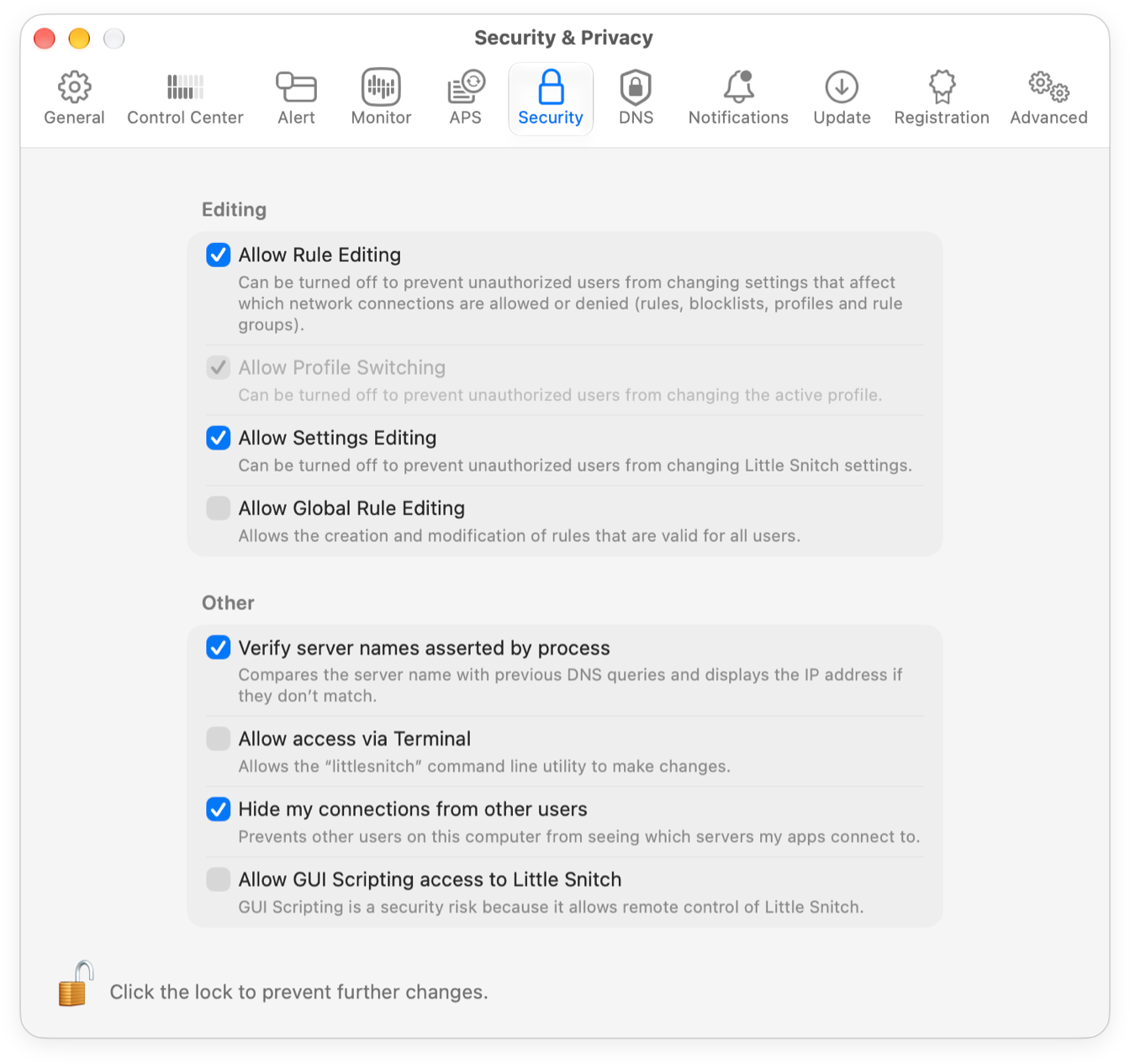
These settings are locked by default. To change them, click the lock in the bottom left corner and enter an administrator password.
The options in Editing restrict what users can do. When an option is off and a user tries a restricted operation, Little Snitch asks for the name and password of an administrator.
- Allow Rule Editing: If your Mac has managed accounts, for example for your children, you can keep these users from editing rules and profiles. This includes rule groups and blocklists, because they contain rules. While rule editing is off, users without an administrator password can create only temporary rules in the connection alert.
- Allow Profile Switching: Whether users can change the active profile while rule editing is off. While rule editing is on, this option has no effect.
- Allow Settings Editing: Whether users can change settings, which is again useful for managed accounts. An administrator can still unlock the settings with the lock, change them, and turn this option on again.
- Allow Global Rule Editing: Whether users can create, edit, and delete rules for Anyone. These rules affect other users too, which is why you can restrict them. Rules for System are different: they also affect all users, but every user can edit them, because users need them to manage the connections of their own processes. See Process owner.
- Verify server names asserted by process: Each connection carries the hostname of its server in the SNI header, written by the process itself. With this option on, Little Snitch checks this hostname against the earlier DNS lookups. If they don’t match, Little Snitch shows the IP address instead of the hostname. With this option off, Little Snitch trusts the SNI header. See How hostnames are determined.
- Allow access via Terminal: Little Snitch comes with the command line utility
littlesnitch. Most of its functions work only for the superuser, and only while this option is on. This keeps malicious scripts from changing your Little Snitch settings. - Hide my connections from other users: Whether Network Monitor shows other users of your Mac the domains and hostnames of the apps that run under your account. Keep in mind that your apps also hand tasks to system processes, and because system processes work for all accounts, all users can see their connections.
- Allow GUI Scripting access to Little Snitch: Whether other apps can control Little Snitch remotely. Turn on this option only if an app needs it, for example a third-party screen sharing app or an assistive device. Remote control weakens the protection that Little Snitch gives you.
© 2016-2026 by Objective Development Software GmbH