 Little Snitch 4 Help
 Little Snitch 5 Help
 Little Snitch 6 Help
Manage rule groups
This page shows you how to add, create, import, and share rule groups. For what rule groups are and which ones come with Little Snitch, see Rule groups.
Which kind of rule group you need depends on what you want to do:
- Allow what macOS or iCloud needs: enable the factory rule groups macOS Services and iCloud Services.
- Allow the apps that are already installed: add an app rule group.
- Organize your own rules, and turn them on or off together: create a local rule group.
- Copy rules from one Mac to another once: import an
.lsrulesfile. - Keep the same rules on several Macs: add a remote rule group.
All new rule groups start at the same place: the add button next to the Rule Groups heading in the sidebar of the Rules window.
macOS Services and iCloud Services
The factory rule groups macOS Services and iCloud Services are in the Rule Groups section of the sidebar from the start, so there’s nothing to add. To enable or disable one, select or clear its checkbox. To learn what these groups allow, see Factory rule groups.
App rule groups
The factory rule groups Apple Apps and Third Party Apps are app rule groups: they contain allow-rules for all apps from Apple, or for all third-party apps on your Mac. They aren’t in the sidebar until you add them, because Little Snitch builds them from the apps that are installed at that moment. To learn what these groups allow, see Factory rule groups.
To add an app rule group:
- In the sidebar of the Rules window, click the add button next to the Rule Groups heading.
- Choose Apple Apps or Third Party Apps.
Little Snitch looks for apps in all the usual locations and adds the group. The group starts out disabled, so you can check its rules before you enable it.
From then on, the group is yours, and you can change it just like a local rule group, see Edit and delete rule groups.
Local rule groups
A local rule group lets you turn a set of your own rules on or off at once. In that respect, it’s similar to a profile. But unlike profiles, you can have as many rule groups enabled as you like.
To create a local rule group:
- In the sidebar of the Rules window, click the add button next to the Rule Groups heading.
- Choose Local Rule Group…. The group editor opens.
- Enter a name and a description for the new group.
Then drag rules onto the group, or create new rules right in it.
Edit and delete rule groups
App rule groups and local rule groups are under your control:
- To add rules, drag them onto the group. You can also remove rules from it.
- To change its name and description, double-click the group to open the group editor.
- To delete the group, right-click it and choose Delete Rule Group. Little Snitch then asks what to do with its rules. Click Delete Rules to delete them too, or Keep Rules to keep them. Kept rules no longer belong to a rule group, and Little Snitch disables them and marks them as unapproved, so you can review them before you use them again.
Import rules from a file
The easiest way to move rules from one Mac to another is to export them on one Mac with File > Export Selected Rules…, and import the resulting .lsrules file on the other. The rules end up in a local rule group.
If the configuration is locked, unlock it first: click Locked in the toolbar of the Rules window, then click Unlock, or choose File > Unlock Configuration. Then:
- Choose File > Import Rules…, or click the add button next to the Rule Groups heading in the sidebar and choose Import Local Rule Group….
- Select the
.lsrulesfile. - In the pop-up menu Target Rule Group, choose Create New Rule Group or an existing local rule group.
- If you chose an existing rule group, choose a Merge Strategy (see below).
- Click Import.
To import into a particular local rule group directly, right-click the group in the sidebar and choose Import Rules…. You can also double-click an .lsrules file in Finder: the Little Snitch app then shows the same options.
If the file contains rules for Anyone and Allow Global Rule Editing is off in Settings > Security, Little Snitch asks what to do:
- Click Import All Rules to import everything, then enter the name and password of an administrator.
- Click Import Only Non-Global Rules to leave out the rules for Anyone.
When you import into an existing rule group, the Merge Strategy decides what happens to the rules that are already in it:
- Replace Existing Rules: Removes all existing rules of the group and adds the imported ones.
- Merge — Prefer Imported: Adds the new rules and keeps the existing ones. Where an existing rule is equivalent to an imported one, the imported rule replaces it, including whether it’s disabled.
- Merge — Prefer Existing: Adds the new rules and keeps the existing ones. Where an existing rule is equivalent to an imported one, the existing rule stays as it is.
A new rule group gets its name and description from the .lsrules file, or the file name if the file has no name.
When the import is complete, Little Snitch tells you how many rules it added and removed, and shows you the imported rules in their group. From then on, they’re ordinary rules in a local rule group: Little Snitch doesn’t update them from the file. If you want automatic updates, use a remote rule group instead.
Remote rule groups
Remote rule groups work much like blocklists, but they can contain any kind of rule, not just deny-rules for Any Process. They’re the way to share rules between Macs, for example in a company or a family: you maintain the rules in one place, and every Mac picks up your changes automatically.
Put the rules on a server
A remote rule group needs a URL where Little Snitch can download the rules in .lsrules format:
- In the Rules window, select the rules that you want to share.
- Choose File > Export Selected Rules…. Little Snitch saves them as an
.lsrulesfile, in JSON syntax. - Put the file on a secure (HTTPS) server with a valid certificate.
Little Snitch doesn’t download rules over insecure connections, and self-signed certificates or certificates from your own certification authority don’t work. A free certificate from Let’s Encrypt is fine.
No secure server of your own? Use gitlab.com or github.com. A gitlab.com snippet is easiest, because it doesn’t need a repository. In Little Snitch, use its raw download link.
Without any server, you can still import the .lsrules file into a rule group on each Mac. You just don’t get automatic updates.
Add the remote rule group
On each Mac that should use the rules:
- In the sidebar of the Rules window, click the add button next to the Rule Groups heading.
- Choose Remote Rule Group….
- Enter the URL.
- Click Add.
- If Allow Global Rule Editing is off in Settings > Security, enter the name and password of an administrator.
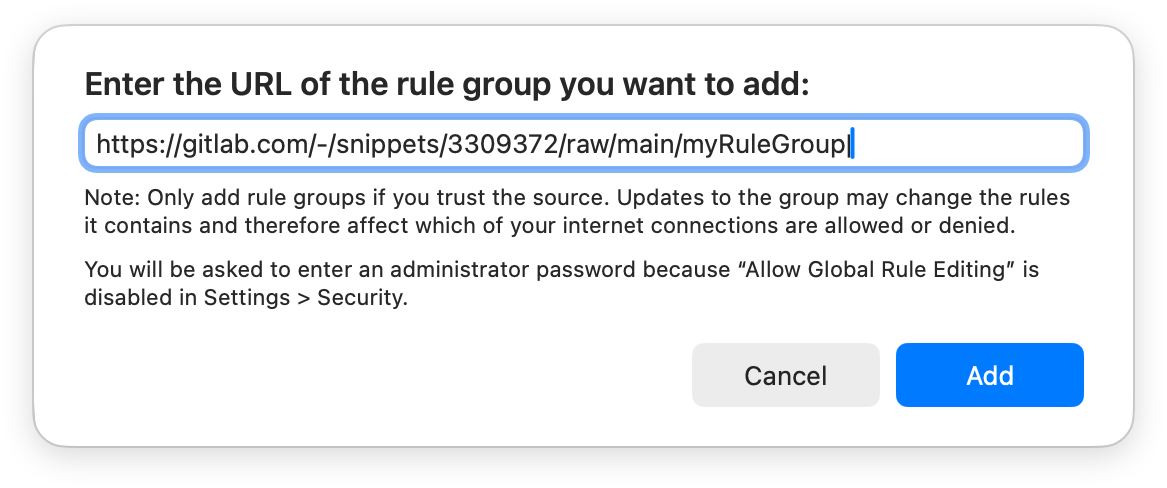
Little Snitch downloads the rule group and opens its settings. To open them again later, double-click the rule group.
Settings of a remote rule group
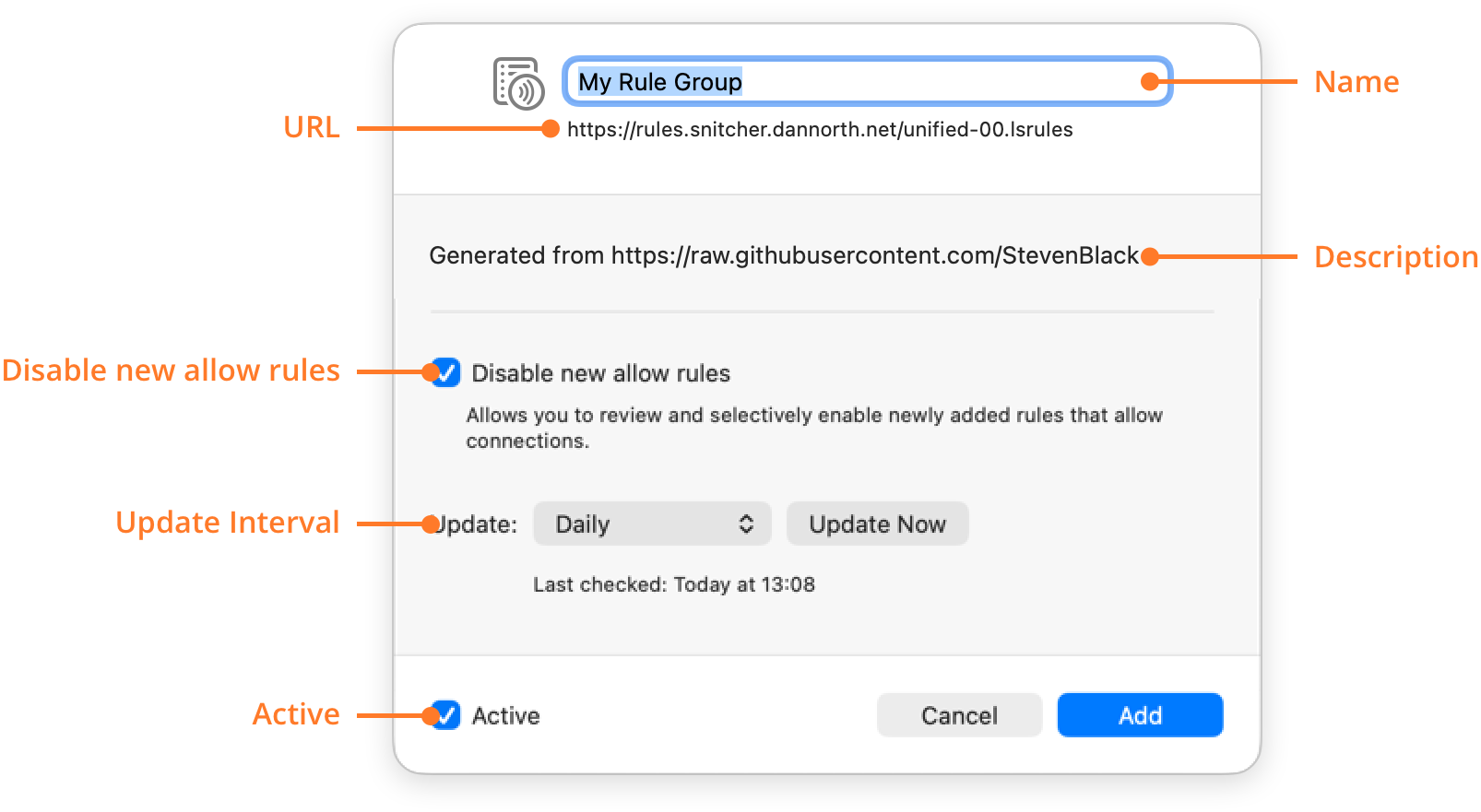
- Name: The name of the rule group, from the
.lsrulesfile. You can change it. - URL: The URL that you entered when you added the group, for your reference.
- Description: The description from the
.lsrulesfile. - Disable new allow rules: A remote rule group means trusting whoever controls the URL not to sneak in allow-rules for malicious connections. Deny-rules are no security risk, so Little Snitch always imports them as they are. With this option on, new allow-rules arrive disabled, and you enable only the ones that you want. If you trust the owner of the URL, clear this checkbox.
- Update Interval: How often Little Snitch updates the group from the URL.
- Active: To check all rules before you enable the rule group, clear this checkbox. Little Snitch then adds the group disabled.
© 2016-2026 by Objective Development Software GmbH