 Little Snitch 4 Help
 Little Snitch 5 Help
 Little Snitch 6 Help
Connection list
The connection list is the heart of Network Monitor. It shows every connection that the processes on your Mac have made, for up to one year (the database may also hold data that is slightly older). To keep this huge list manageable, Network Monitor groups the connections, for example by app and domain, and you can filter it in many ways.
Overview
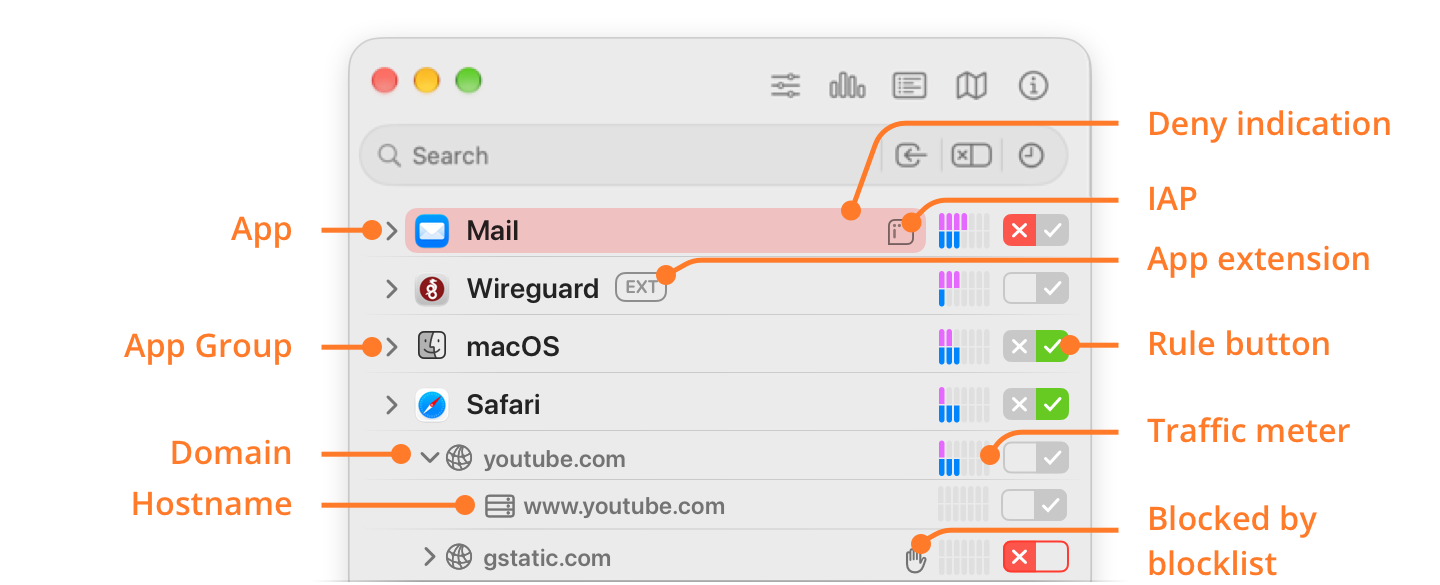
- App: The name and icon of the process that makes the connections.
- App Group: Network Monitor puts the background processes of macOS, and the processes of the simulators in Xcode’s Device Hub, into groups of their own.
- Domain: Network Monitor groups the servers by domain. Usually, the domain tells you enough, and you can leave the details closed.
- Hostname: The hostname that the process used to connect to the server.
- Deny indication: When Little Snitch denies a connection, its row flashes red.
- IAP: The app has an Internet Access Policy (IAP). Select the row to read it in the Inspector.
- App extension: This badge means that an extension inside the app made the connection, not the app itself. In the example above, the WireGuard app contains a network extension that does the actual work.
- Rule button: With its allow symbol and deny symbol , the rule button shows which rules apply to the row. Click it to create or delete a rule.
Learn more about the rule button… - Traffic meter: Shows the current traffic rate of sent and received data, or, if you prefer, the traffic rates of the last five minutes. When the list is sorted by traffic volume, bars that show the volume take their place, and when it’s sorted by Deny Count, the number of denied connections.
- Blocked by blocklist: A blocklist blocked connections of this row. Click the hand icon for a menu that shows the name of the blocklist. Show “…” in Blocklist opens the blocklist entry in the Rules window.
Hierarchy of grouping
By default, Network Monitor groups the connections like this:
- App Group (not shown if the app is not in a group)
- Parent App
- Connecting Process (not shown if the parent app makes the connection itself)
- Incoming / Outgoing (not shown for outgoing connections)
- Localnet / Internet (not shown for internet connections)
- Domain
- Hostname
- Domain
- Localnet / Internet (not shown for internet connections)
- Incoming / Outgoing (not shown for outgoing connections)
- Connecting Process (not shown if the parent app makes the connection itself)
- Parent App
To expand a row, click its disclosure triangle. To expand more at once, hold down a modifier key while you click:
- Option key: Expands all levels below the row.
- Command key: Also expands the more items rows.
- Command key and Option key: Expands all levels below the row, including their more items rows.
To choose a different hierarchy, click the view options button, the first button in the toolbar. Some hierarchies show the domains first and the apps below them, and others also group the connections by country.
Sort order
To change the sort order, choose View > Sort By, or click the view options button:
- Network Activity: Most recent network activity first (the default).
- Name: Alphabetically.
- Traffic Volume: By total traffic volume in the displayed time interval.
- Traffic Volume – Sent: By traffic volume sent in the displayed time interval.
- Traffic Volume – Received: By traffic volume received in the displayed time interval.
- Deny Count: By number of denied connections. Only available while the filter Only show denied connections is on.
The sort order also decides what the meters show: volume meters when sorted by traffic volume, the number of denied connections when sorted by Deny Count, and otherwise the meters that you chose in Settings.
In two cases, Little Snitch changes the sort order for you:
- When you select a time interval in the traffic chart, or focus on one page with Focus on interval, the list is sorted by Traffic Volume and shows volume meters. If it was already sorted by Traffic Volume – Sent or Traffic Volume – Received, it stays that way. Meanwhile, you can choose only Name or one of the Traffic Volume sort orders.
- When you turn on the filter Only show denied connections, the list is sorted by Deny Count, and the Traffic Volume sort orders aren’t available.
When you end the selection, the focus, or the filter, the previous sort order comes back.
Traffic meters
| STYLE | DESCRIPTION |
|---|---|
 |
Shows the current traffic rate. |
 |
Shows the traffic rate of the last five minutes. Each bar stands for about 40 seconds. |
 |
Shows the traffic volume sent (pink, at the left) and received (blue, at the right). |
 |
Shows the traffic volume sent. |
 |
Shows the traffic volume received. |
Context menu
Right-click a row in the connection list for its context menu:
- Copy: Copies the selected rows as text, one line per row. For a process, Copy is a submenu with Copy Path and Copy Name. For a domain, a hostname, or an IP address, the item is Copy Domain, Copy Hostname, or Copy IP Address. For a hostname, hold down the Option key to copy the IP address instead. The item is available only when all selected rows are of the same kind.
- Show in Finder: Shows the app or executable of the process in Finder. Available when you select a single process.
- Focus on “…”: Shows only the connections of this process, domain, hostname, IP address, or country.
- Capture Traffic…: Opens a Terminal window with a command that captures the traffic of the process in
.pcapformat, which you can open with Wireshark. - Remove from List…: Deletes all connections of the selected rows, and removes them from the traffic totals. Little Snitch asks you to confirm first, because you can’t undo this.
- Delete Rule: Deletes the rule associated with the row, if there is one.
- Allow: A submenu that creates an associated allow-rule: Allow Permanently, Allow for 5 Minutes or Allow Until Logout.
- Deny: A submenu that creates an associated deny-rule, with the same choices.
- Reset Unconfirmed: For connections that occurred in Silent Mode, removes the “unconfirmed” mark without creating a rule.
- New Rule…: Opens the Rules window with a new rule for the process of the row.
- Show Rules: A submenu:
- Show in Inspector: Shows the rules in the Rules section of the Inspector.
- Show in Rule List: Opens the Rules window and shows all rules that apply to the connections of the row. That includes only rules for connections that actually occurred, not for connections that the row would represent.
- Show Recently Used Rules: Appears when you hold down the Option key. Shows the rules that allowed or denied connections of the row in the last 10 minutes, in the Rules window. Available only if the row had activity in that time.
- Hide Connections…: Creates a rule with the action Hide for the process. Network Monitor then no longer shows its connections, and counts their traffic in a single row, Hidden Connections.
Hidden connections
Network Monitor collects a lot of information about the connections of your apps. Little Snitch encrypts it, so other people can’t read it. But for some connections, you may not want any record at all. In some countries, for example, visiting certain websites can get you into trouble, and you don’t want traces of these visits on your Mac.
For these connections, use a rule with the action Hide. When such a rule matches a connection, Network Monitor doesn’t record its details and counts its traffic in a single row, Hidden Connections. You can create such a rule in the rule editor, or right-click a process in the connection list and choose Hide Connections… from the context menu.
© 2016-2026 by Objective Development Software GmbH