 Little Snitch 4 Help
 Little Snitch 5 Help
 Little Snitch 6 Help
Traffic chart
The traffic chart shows how much data your Mac sent and received over time, going back up to one year. Recent traffic is shown to the second. The further back you go, the coarser it gets, down to one hour.
The chart shows the traffic of the connections that you select in the connection list, or of all visible connections if nothing is selected.
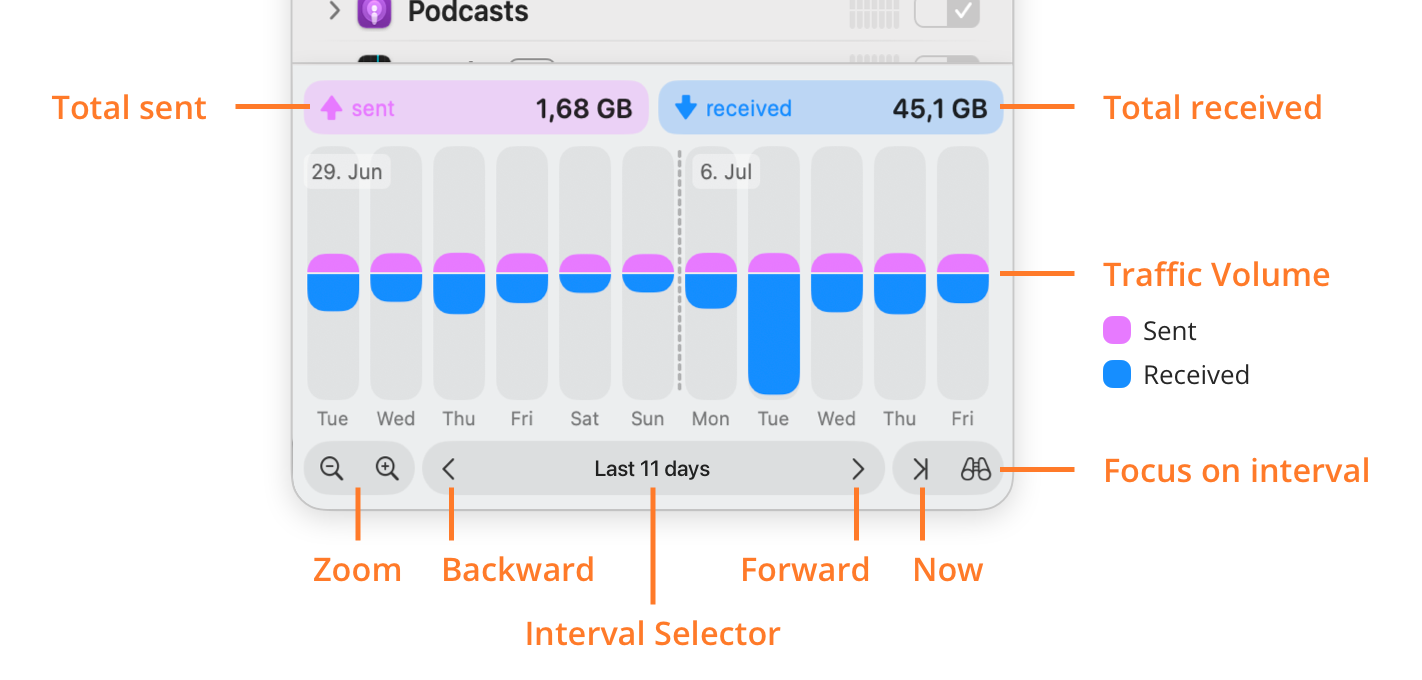
- Total sent: How much data your Mac sent: in the bars under the pointer or in the selected bars, or else in the whole visible time interval.
- Total received: How much data your Mac received, for the same bars or time interval.
- Traffic Volume: The traffic over time, one bar per time unit. The upper part of each bar (Sent) shows the data sent, and the lower part (Received) the data received.
- Zoom: The left button zooms out by one step, the right button zooms in.
- Backward: Goes back one page to older traffic. Command-click to jump to the first page.
- Time Interval Selector: Shows the time interval that you see, for example “Last 11 days”, or the time interval of the bars under the pointer or selected. Click it to choose the length of a page in the Page Size menu: One Minute, 5 Minutes, 10 Minutes, One Hour, One Day, One Week, One Month, or One Year.
- Forward: Goes forward one page to newer traffic. Command-click to jump to the last page.
- Now: Jumps to the current time.
- Focus on interval: Shows one complete page, for example one day or one week, see Focus on interval.
The figures in Total sent and Total received are traffic volumes, not traffic rates. To see rates instead, hold down the Option key while you point at bars or while bars are selected. For a single bar, Little Snitch averages the rate over this bar and a few of its neighbors.
Denied connections
When you click the filter button for denied connections (Only show denied connections, see search and filters), the traffic chart shows denied connections instead of traffic. Each bar then shows how many connections Little Snitch denied or blocked in its time interval, and the figure above the chart shows the total, for example “denied 12 connections”. To see the number of denied connection attempts of a single bar, move the pointer over it.
The connection list changes too: it’s sorted by Deny Count, and shows the number of denied connections instead of the traffic meters. Deny Count is available in View > Sort By only while this filter is on, and the Traffic Volume sort orders aren’t available then.
Focus on interval
To look at one page of the chart in isolation, for example one day or one week, click the focus button (Focus on interval). The page size decides how long the page is. The chart then hides the bars of all other pages.
The connection list and the Connection Log follow the focus: they show only the connections of this page. The connection list also changes its sort order and its traffic meters, just as for a selected time interval.
The focus is always on a complete page. Since the page with the current time isn’t complete yet, you can’t focus on it: if the chart shows the current page when you click the focus button, Little Snitch focuses on the page before it.
To move the focus to the previous or next page, click Backward or Forward. To end the focus, click the focus button again.
Select a time interval
To select a time interval, drag the pointer over the bars. Total sent and Total received then show the traffic volumes of the selection.
The selection also filters the connection list: it shows only the connections with events during that time, that is, data sent or received, connections established, or connections denied by a rule. The Connection Log shows only the lines of that time.
While a time interval is selected, the connection list is sorted by Traffic Volume, and its traffic meters show how much each connection transferred in the selection. That way, the connection that caused the traffic in the chart comes out on top.
If the list was already sorted by Traffic Volume – Sent or Traffic Volume – Received, it stays that way. During the selection, View > Sort By offers only Name and the Traffic Volume sort orders. When you end the selection or the focus, the previous sort order comes back.
Which process caused a traffic peak? Select the peak in the traffic chart. The connection list and the map then show only the connections with traffic during that time.
© 2016-2026 by Objective Development Software GmbH