 Little Snitch 4 Help
 Little Snitch 5 Help
 Little Snitch 6 Help
Manage blocklists
This page shows you how to add, edit, and check blocklists, and what to do when a blocklist blocks something that you need. For what blocklists are, how to choose them, and which formats Little Snitch supports, see Blocklists.
Add blocklists
-
In the sidebar of the Rules window, click Add Blocklists…. If you already have blocklists, click the add button next to the Blocklists heading instead.
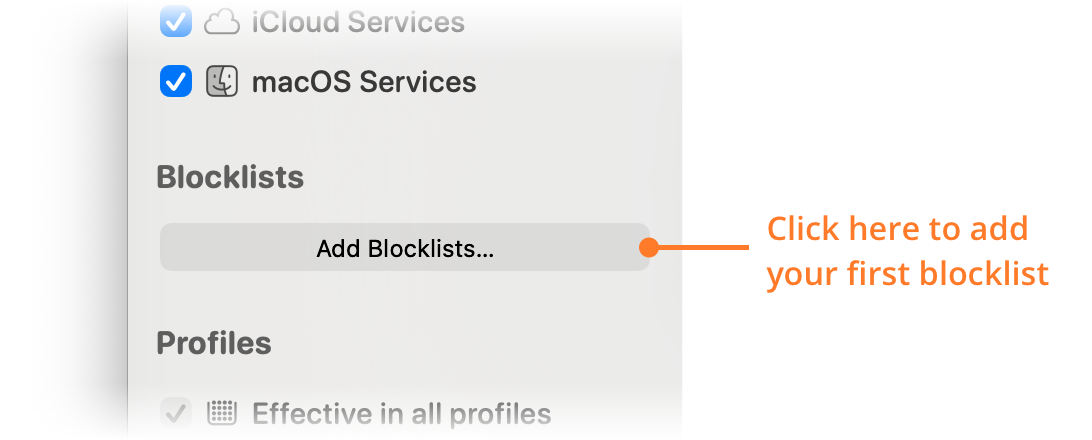
The blocklist picker opens and downloads the current list of preconfigured blocklists from blocklists.obdev.at.
-
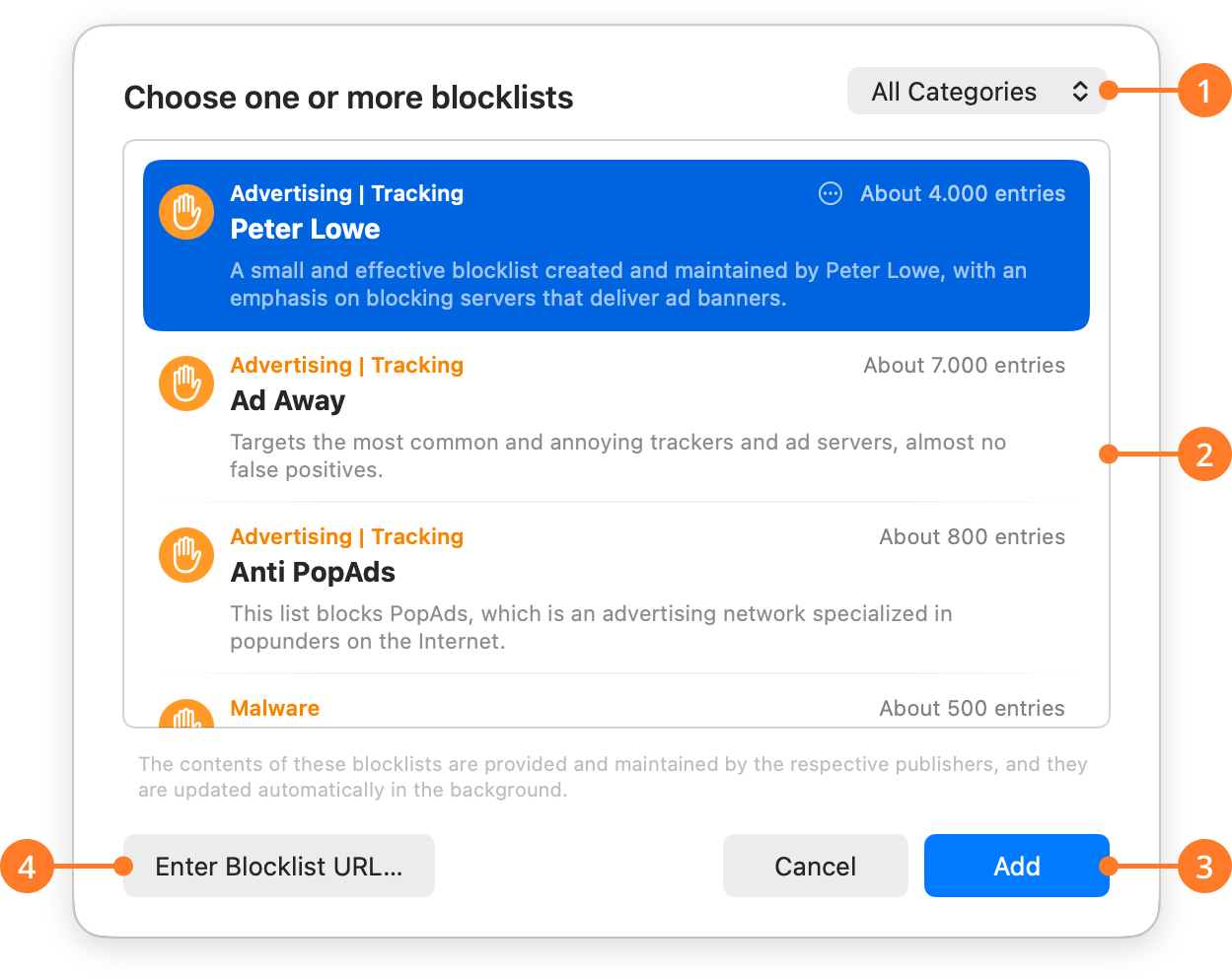
Select the blocklists that you want. To learn how we chose these blocklists, and how to choose among them, see Blocklists.
-
Click Add.
-
If Allow Global Rule Editing is off in Settings > Security, enter the name and password of an administrator. Blocklists affect all users of your Mac, so this needs an administrator.
Little Snitch downloads the blocklists and enables them right away.
The picker has these parts:
| ITEM | DESCRIPTION |
|---|---|
| 1 | Choose a category to show only its blocklists. The default is All Categories. Some blocklists specialize in tracking, others in malware or explicit content, and some cover several topics. |
| 2 | All blocklists of the selected category. The orange text above each name shows the categories of the blocklist, and below the name is a short description. On the right, you see an estimate of how many domains or hostnames the blocklist contains. |
| 3 | Select the blocklists that you want to add, then click Add. |
| 4 | If the blocklist that you want isn’t in the list, click Enter Blocklist URL… and enter its URL. |
If you entered a URL, the blocklist editor opens (see below) and asks you for a name.
Edit a blocklist
To change the name or the update interval of a blocklist, double-click it in the sidebar. The blocklist editor opens:
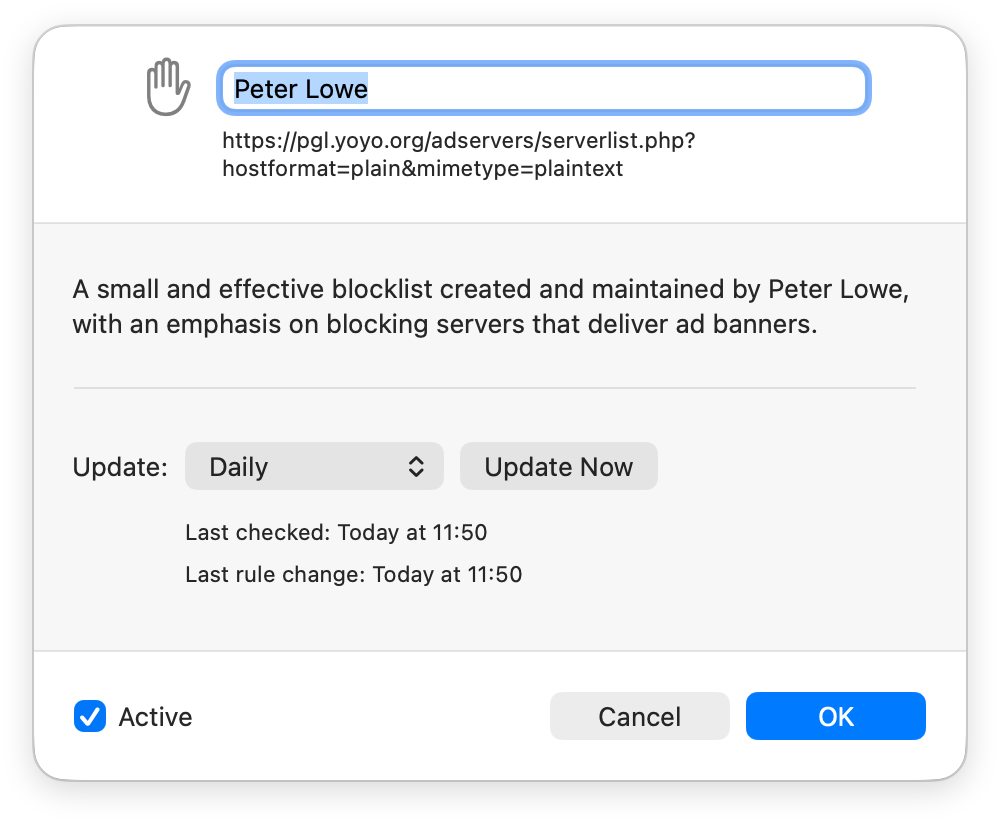
To download the blocklist again right away, click Update Now. To remove a blocklist, right-click it in the sidebar and choose Remove Blocklist.
Inspect a blocklist
A blocklist can contain thousands of entries. To see them, select the blocklist in the sidebar. Little Snitch shows its entries in a table:
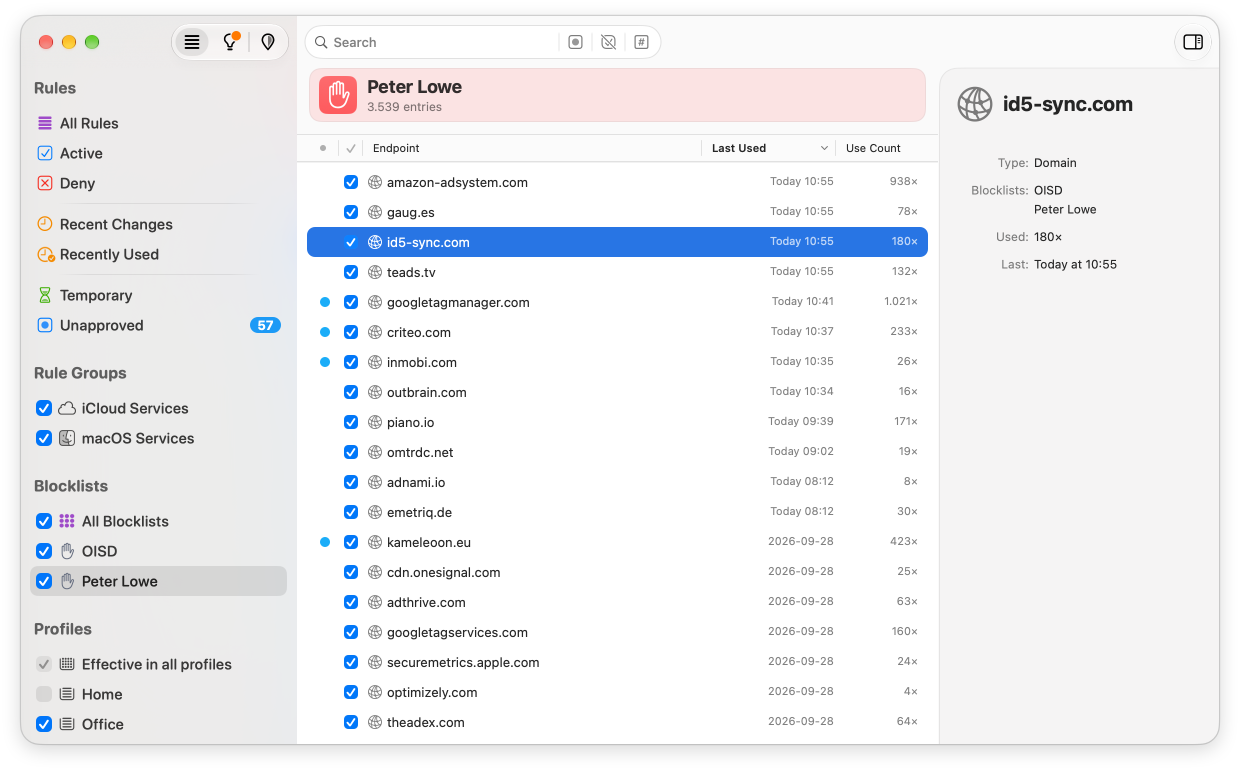
The table has the following columns:
- Unapproved: A blue dot marks an entry that you haven’t approved yet.
- Enabled: Clear the checkbox to disable the entry, so that Little Snitch no longer blocks connections to it.
- Endpoint: The domain, hostname, or IP address of the entry.
- Last Used: When the entry last blocked a connection.
- Use Count: How many connections the entry has blocked.
The first two columns have icons as headers. To sort the table by a column, click its header. Sorting by Use Count, for example, shows you which entries do the most work.
Right-click an entry for its context menu:
- Copy Domain, Copy Hostname, or Copy IP Address: Copies the entry.
- Approve: Approves the entry. Only for unapproved entries.
- Enable or Disable: Enables or disables the entry.
- Show in Network Monitor: Shows the connections to this entry in Network Monitor.
When a blocklist is selected, the search field has three filter buttons for its entries: Unapproved Entries, Disabled Entries (click and hold it to choose Enabled Entries), and Used Entries.
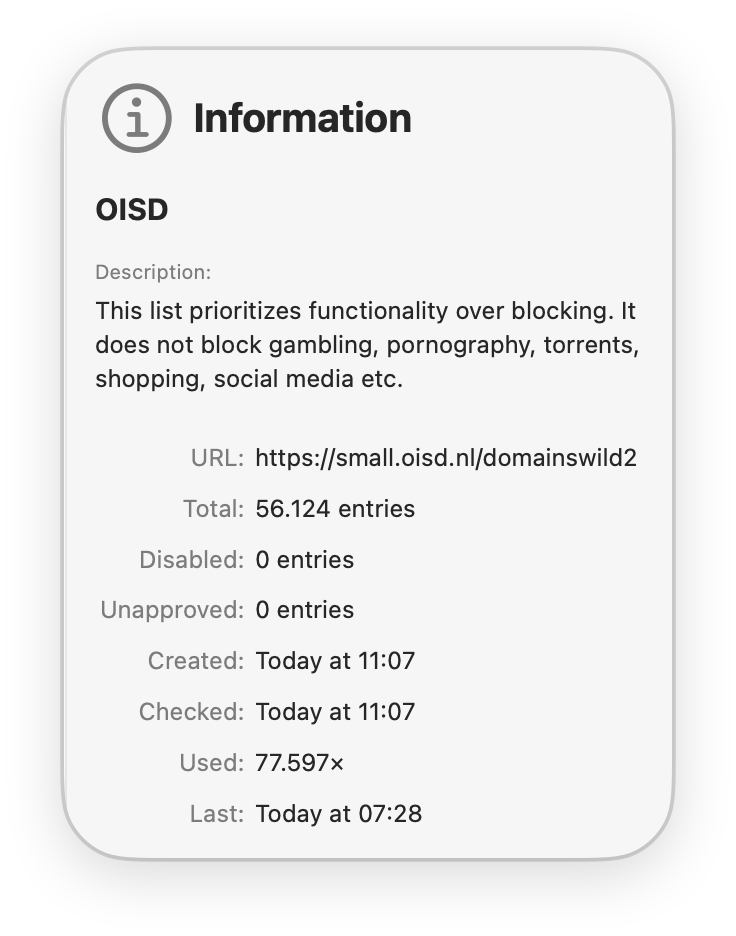
Select an entry to see its usage statistics in the Inspector. With no entry selected, the Inspector shows the properties of the blocklist:
If a blocklist blocks something you need
No blocklist is perfect. Sometimes it contains a server that you actually need, a false positive, and a website or an app stops working correctly. To fix it:
- Find the entry. If you don’t know which blocklist contains it, select All Blocklists in the sidebar and click Entries in the top bar (see below). Then search for the server, or sort by Last Used to see what was blocked most recently. If you don’t know which server it is, see If an app does not work.
- Clear the checkbox in the Enabled column to disable the entry.
If the entry is in more than one blocklist, Little Snitch disables it in all of them, so this one step is enough.
Work with more than one blocklist
The All Blocklists item in the sidebar stands for all of your blocklists at once:
- To enable or disable all blocklists, use the checkbox to its left.
- To update all blocklists, right-click it and choose Update All Blocklists. The same menu has Enable All Blocklists and Disable All Blocklists.
- To browse all blocklists with their properties, select it and click Blocklists in the top bar.
- To remove several blocklists, select them there and press the Delete key.
- To see the entries of all blocklists in one table, select it and click Entries in the top bar. The table shows each entry only once.
© 2016-2026 by Objective Development Software GmbH