 Little Snitch 4 Help
 Little Snitch 5 Help
 Little Snitch 6 Help
Uninstalling Little Snitch
The best way to uninstall Little Snitch is the menu item Uninstall Little Snitch… in the Little Snitch app. It unloads the system extensions of Little Snitch, removes all of its components, and moves the app to the Trash.
By default, Little Snitch keeps your rules, settings, and network statistics, so that everything is still there if you install it again later. If you want them gone too, you can choose that during the uninstallation, see Delete all data.
Uninstall with the Little Snitch app
-
Open the Little Snitch app from the Applications folder.
-
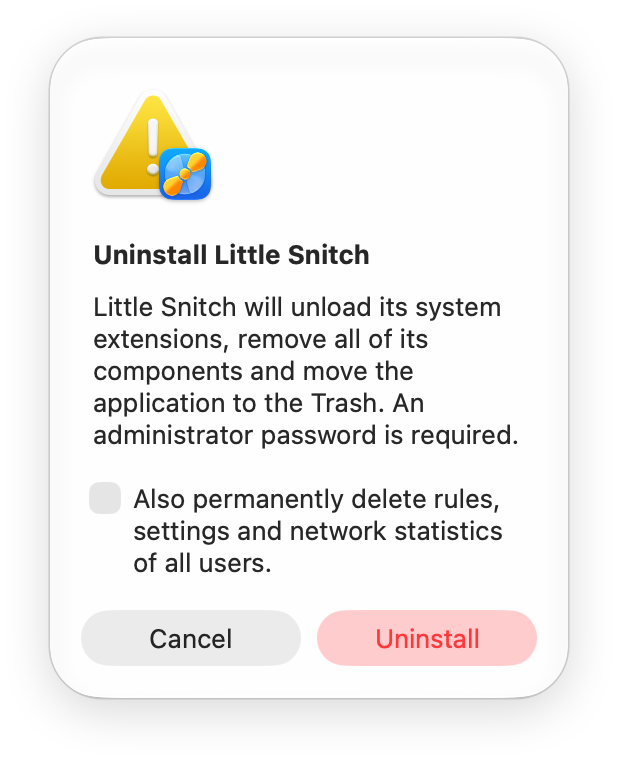
Choose Help > Uninstall Little Snitch…. The dialog Uninstall Little Snitch opens.
-
If you also want to delete all data of Little Snitch, select the checkbox Also permanently delete rules, settings and network statistics of all users.
-
Click Uninstall.
-
Enter the name and password of an administrator. macOS asks once for each installed system extension of Little Snitch, or once if none is installed.
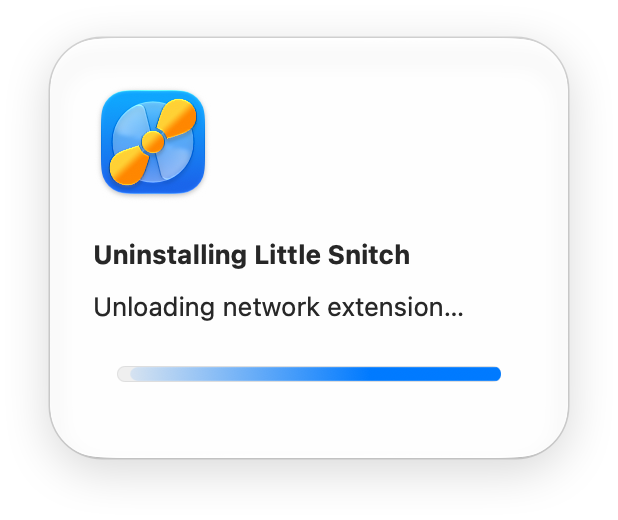
Little Snitch shows the progress:
-
When it’s done, Little Snitch shows the result, including whether it kept your rules, settings, and network statistics. Click Quit.
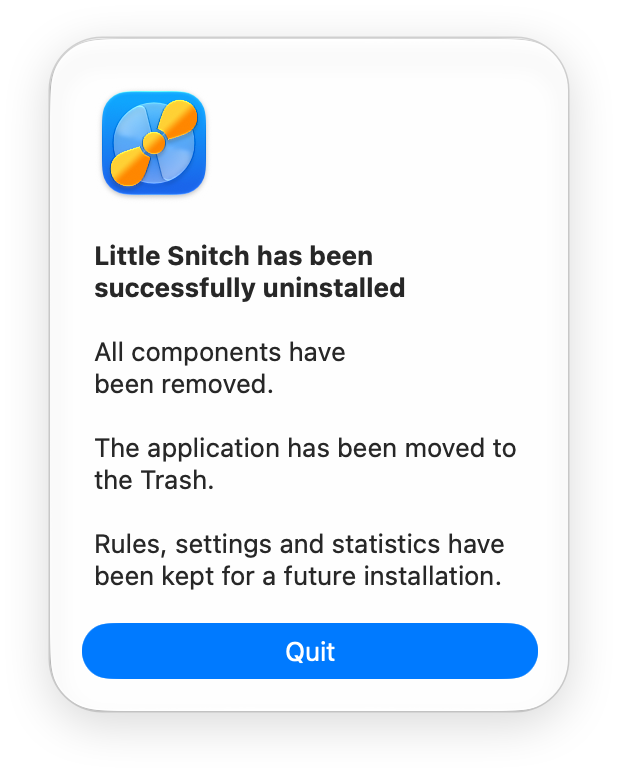
The result may ask you to do one more thing:
- Restart your Mac, if the result recommends it. macOS deletes some leftover files of the system extensions at the next restart. Little Snitch no longer uses them.
- Move the app to the Trash in Finder, if Little Snitch couldn’t do it.
Move the app to the Trash
You can also uninstall Little Snitch by moving the app from your Applications folder to the Trash in Finder. Finder then asks you to confirm the removal of the system extensions of Little Snitch. Confirm it, and Little Snitch removes its other components. If you don’t confirm, Finder leaves the app where it is.
This way is less reliable, though: because of bugs in macOS, Finder sometimes fails to remove the system extensions and other components, while reporting that it did. That’s why Help > Uninstall Little Snitch… is the better way.
Do not remove the Little Snitch app with other tools, such as Terminal or an app-removal tool. macOS then leaves the system extensions of Little Snitch installed.
Delete all data
To delete your rules, settings, and network statistics along with the app, select the checkbox Also permanently delete rules, settings and network statistics of all users. in the dialog Uninstall Little Snitch. Little Snitch then deletes the data of all user accounts on your Mac, including your license key. If you install Little Snitch again, you’ll need to enter your license key again.
One thing stays: the encryption key in the System keychain, which Little Snitch uses to encrypt your rules, settings, and network statistics. Little Snitch keeps it because you need it if you ever restore a backup of this data, and many backup apps don’t back up this key. Without it, Little Snitch can’t use the data.
Delete the data later
If you uninstalled Little Snitch without selecting the checkbox, you can still delete the data yourself. In Finder, delete this folder:
/Library/Application Support/Objective Development/Little SnitchA few less important settings are in the macOS user defaults. To delete them, delete the following files, but only after the uninstallation is complete. While any component of Little Snitch is still running, macOS may write a deleted file again.
~/Library/Preferences/at.obdev.littlesnitch.plist
~/Library/Preferences/at.obdev.littlesnitch.agent.plist
~/Library/Preferences/at.obdev.littlesnitch.networkmonitor.plist
~/Library/Preferences/at.obdev.littlesnitch.softwareupdate.plist
The ~ (tilde) stands for your home folder. These files contain only the settings of your own user account. Other users need to delete the files in their own home folders.
If something went wrong
The uninstallation stopped with an error
Little Snitch then shows the message Little Snitch could not be uninstalled, which tells you which components were removed and which remain. To repair the installation and try again:
- Click Quit.
- Start the Little Snitch app again. Little Snitch repairs the installation.
- Choose Help > Uninstall Little Snitch… again.
Components remain after you moved the app to the Trash
Because of bugs in macOS, the system extensions and other components of Little Snitch can stay installed after you move the app to the Trash. To remove them:
- Put the current version of Little Snitch back into your Applications folder, either from the Trash or from our website.
- Start the Little Snitch app.
- Choose Help > Uninstall Little Snitch….
- Click Uninstall.
Was it really uninstalled?
In rare cases, bugs in macOS leave some components of Little Snitch installed. If you’re not sure whether everything is gone, enter these two commands in Terminal:
Show all installed system extensions of Little Snitch
systemextensionsctl list | grep activated | grep at.obdev.littlesnitchShow all running components of Little Snitch
pgrep -lf "Little Snitch|littlesnitch"If Little Snitch is uninstalled, neither command shows a result. (If Little Snitch Mini is installed, the commands may show its components.) If something is still there, follow the steps in the previous section.
© 2016-2026 by Objective Development Software GmbH