 Little Snitch 4 Help
 Little Snitch 5 Help
 Little Snitch 6 Help
Networks
If you use Automatic Profile Switching (APS), Little Snitch remembers every network that you join and what to do when you join it again. The Networks view of the Rules window shows all of these networks, so you can check and change their assignments. To open it, click the location button at the top of the sidebar, or choose View > Category > Known Networks.
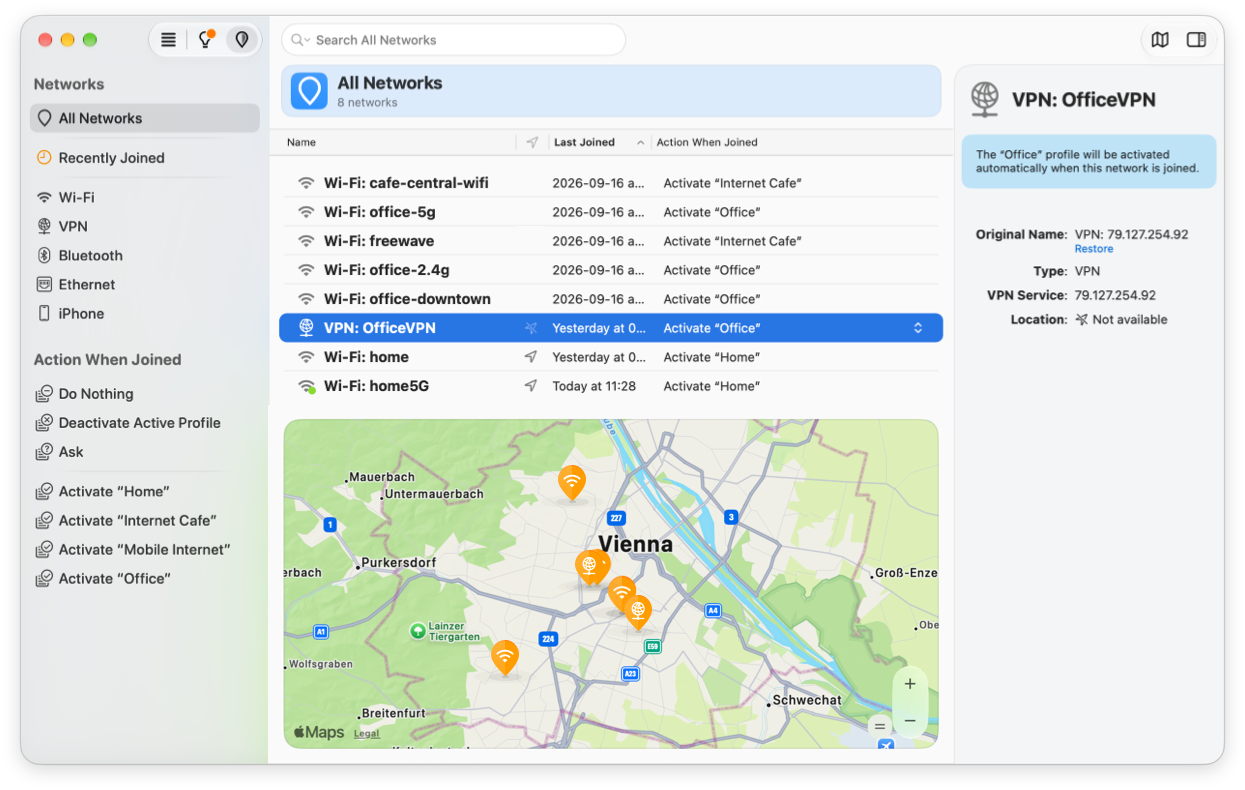
The view has four parts:
- The list of networks, each with its action.
- Filters in the sidebar, which help you find networks in a long list.
- A map with the location of each network. Little Snitch knows the location only if Settings > APS > Save geolocations of networks was on when you joined the network.
- The Inspector, which shows everything that Little Snitch stored about the selected networks.
Filter the list
The sidebar has two kinds of filters:
- Networks: All networks, only the recently joined ones, or the networks of one type, for example Wi-Fi, VPN, or Ethernet.
- Action When Joined: The networks with a particular action, for example Do Nothing, Ask, or Activate “…”.
To search for text, use the search field.
Edit the list
- To rename a network, click its name.
- To change what happens when you join a network, click its action.
- For more options, right-click a network.
- To delete networks, select them and press the Delete key.
A profile can also switch the operation mode when it becomes active. You set this in the profile itself: double-click the profile in the sidebar of the Rules window.
© 2016-2026 by Objective Development Software GmbH