 Little Snitch 4 Help
 Little Snitch 5 Help
 Little Snitch 6 Help
Network Monitor settings
The Monitor pane controls what Network Monitor shows and how it finds the locations on its map.
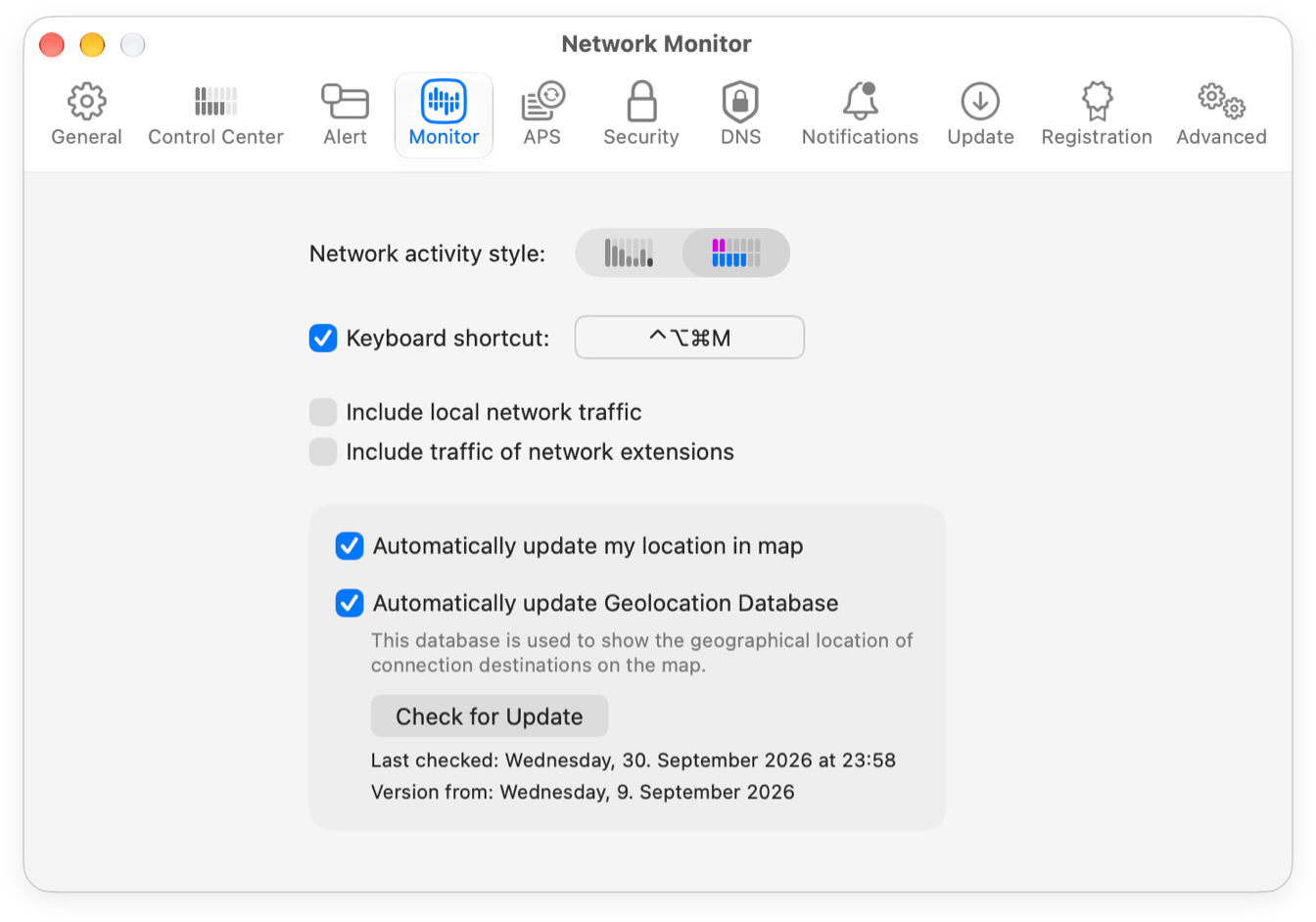
- Network activity style: How Network Monitor shows the traffic of each connection: as a chart of the traffic rates of the last five minutes, or as a meter of the current traffic rate.
- Keyboard shortcut: A global keyboard shortcut that shows and hides Network Monitor.
- Include local network traffic: Whether Network Monitor shows connections to devices in your local network, for example in your home or office network. The Control Center follows this setting too.
- Include traffic of network extensions: Whether Network Monitor shows the connections of network extensions, which are mostly VPN apps. You can also change this in Network Monitor with View > Show Network Extensions. The Control Center follows this setting too.
- Automatically update my location in map: Whether Little Snitch uses Apple Location Services to find your own location (My Location on the map).
- Automatically update Geolocation Database: To find the location of a server, Little Snitch looks up its IP address in a database. The database is on your Mac, because an online lookup would tell the database provider which servers you connect to. With this option on, Little Snitch keeps the database up to date, which makes the locations more precise. Even an up-to-date database is never 100% correct, though. To update it right away, click Check for Update. Below the button, Little Snitch shows when it last checked and the version date of the database.
© 2016-2026 by Objective Development Software GmbH