 Little Snitch 4 Help
 Little Snitch 5 Help
 Little Snitch 6 Help
DNS Encryption settings
In the DNS pane, you set up DNS encryption: which servers answer your lookups, which lookups stay unencrypted, and whether everything works.
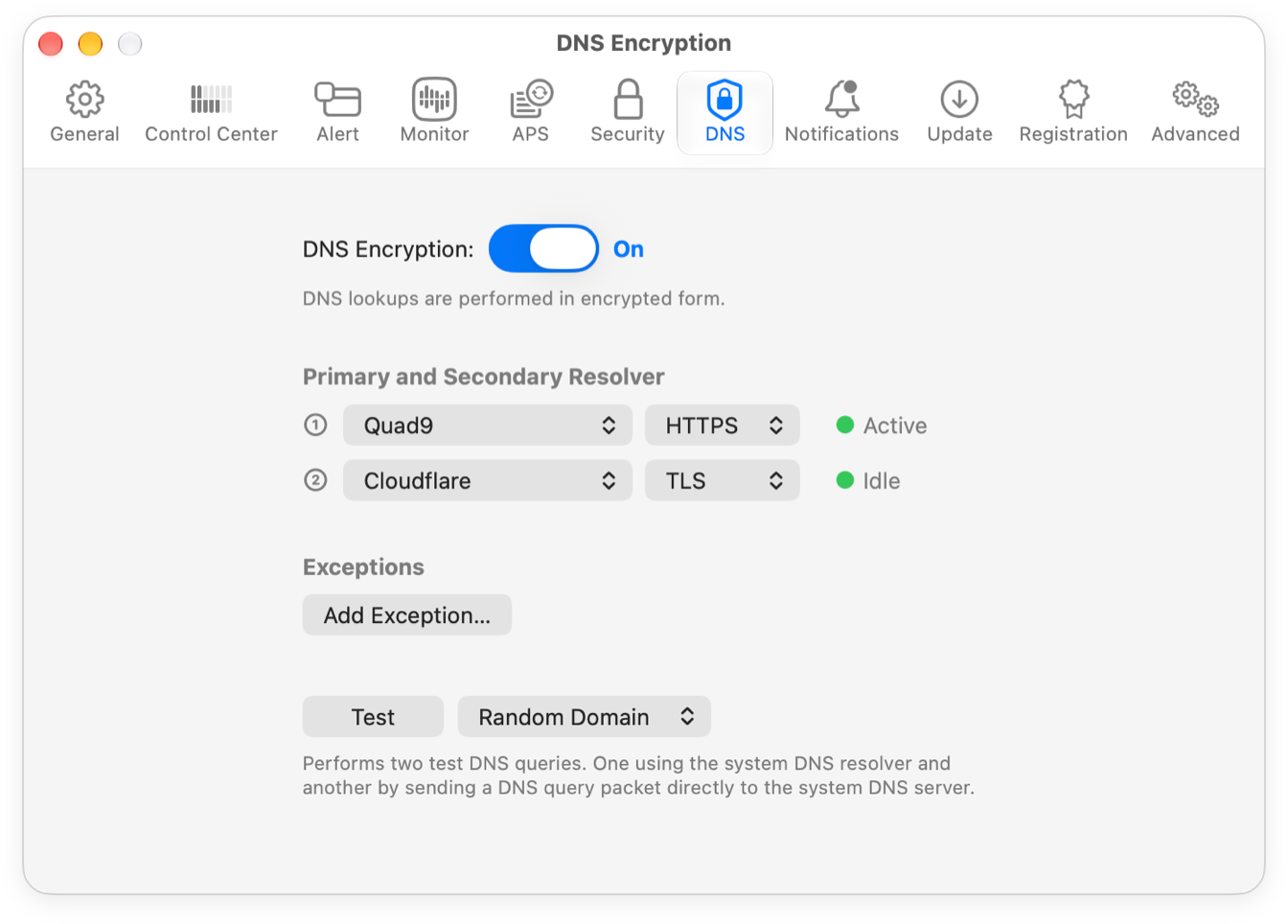
With DNS encryption on, macOS hands all unencrypted DNS lookups on port 53 to Little Snitch, whichever DNS server the process wanted to use. Little Snitch encrypts each lookup, sends it to the resolver that you selected, and passes the answer back to macOS, which gives it to the process as if it came from the original DNS server.
- DNS Encryption: Turns DNS encryption on or off. The text below the switch tells you whether Little Snitch is encrypting your lookups.
- Primary and Secondary Resolver: The two encrypted DNS servers that answer your lookups. In each row, you choose a resolver and a protocol, and you see its status. See Primary and secondary resolver below.
- Exceptions: Lookups that Little Snitch doesn’t encrypt. See Exceptions below.
- Test: Makes test lookups to check that DNS encryption works. See Test below.
Primary and secondary resolver
A resolver is an encrypted DNS server that answers your lookups. Little Snitch uses two of them:
- ① Primary Resolver: Gets all of your lookups.
- ② Secondary Resolver: Steps in when the primary resolver fails or takes longer than 200 ms to answer. If you don’t want a secondary resolver, choose None.
Each row has three controls:
-
Resolver (for example Quad9): The pop-up menu offers the predefined resolvers in two groups: Global with Quad9, Cloudflare, and Google, and Regional with DNS4EU. Each resolver has a submenu:
- The protocols that the resolver supports. Choose one to use this resolver with this protocol.
- Open Provider’s Website: Opens the website of the provider that operates the resolver, where you can read its privacy policy.
- Jurisdiction: The country whose laws the provider operates under, as far as we know. This can change over time.
To use a DNS server that isn’t in the list, choose Custom…, choose the Protocol, and enter the address of the server: the Server URL for DNS over HTTPS, or else Server Host and Server Port. Advanced Settings has more fields, such as Username, Password, or Server SPKI. Your custom server then appears in the menu, with a submenu for Select, Edit, and Delete.
- Protocol (for example HTTPS): How Little Snitch encrypts the lookups on their way to the resolver. The button shows a short name. For a predefined resolver, the menu offers only the protocols that the resolver supports. For a custom server, you can choose any of these:
- DNS over HTTPS (DoH): Packs DNS lookups and answers into HTTPS requests and responses. To a firewall, this looks just like the traffic of secure websites, so DoH often works where a firewall blocks the other protocols.
- DNS over TLS (DoT): The original DNS protocol, encrypted with TLS, the same encryption that secure websites use.
- DNS over QUIC (DoQ): Like DoT, but with the newer and faster QUIC protocol instead of TCP and TLS. QUIC has encryption built in.
-
Status (for example Active): How the resolver is doing:
- Off (gray): DNS encryption is off.
- Idle (green): Little Snitch hasn’t sent lookups to this resolver recently.
- Idle (red): Little Snitch hasn’t sent lookups to this resolver recently, and the last ones failed.
- Active (green): The resolver answers your lookups.
- Degraded (yellow): The resolver answers, but some lookups fail.
- Failing (red): Many lookups fail.
The status is also a button: click it to see the most important metrics of this resolver. For all metrics, click Full Metrics in the popover to open the Dashboard.
Exceptions
Your router or modem is often also your DNS server, and it may know local names, for example for your printer or your TV. A public encrypted DNS server doesn’t know these names. For them to keep working, Little Snitch needs to send their lookups unencrypted to your original DNS server. That’s what exceptions are for.
Click Add Exception…, then choose one of these items:
- Add Exception for Domain…: Little Snitch doesn’t encrypt the lookups for this domain. Enter the following:
- Domain: The domain, for example
fritz.box. - DNS Server: Optional. The IP address of the DNS server for these lookups. If you leave it empty, Little Snitch uses the default DNS server of the system.
- Profile: The profile in which the exception applies. Your TV, for example, is only there at home, not at work. For an exception that always applies, choose Effective in All Profiles.
- Domain: The domain, for example
- Disable in Profile: Turns off DNS encryption while the profile that you select is active.
To change or delete an exception, right-click it in the list and choose Edit or Delete.
Test
DNS encryption depends on many parts working together, and when it works, you don’t notice any difference. So how do you know it’s really on? The test tells you, and it also helps you find the cause of a problem.
- In the pop-up menu next to Test, choose Random Domain or Custom Domain.
- If you chose Custom Domain, enter a domain name.
- Click Test.
Little Snitch makes two test lookups: one through the DNS resolver of the system, and one directly to the DNS server that your Mac uses. The text below the button shows the result, for example “The DNS lookups were successfully performed in encrypted form.”
© 2016-2026 by Objective Development Software GmbH