 Little Snitch 4 Help
 Little Snitch 5 Help
 Little Snitch 6 Help
Network Monitor
Network Monitor shows what your Mac does on the network: which app, Unix command, or system service (in short, which process) connects to which server, and where in the world that server is. For each connection, Network Monitor keeps statistics for up to one year: how much data it sent and received over time, its protocols, its ports, and more.
Open Network Monitor
There are three ways to open Network Monitor:
- In the Control Center, click the traffic chart.
- In the Control Center, click the Network Monitor button at the bottom.
- Press the keyboard shortcut for Network Monitor. You set this shortcut with Keyboard shortcut in Settings > Monitor.
Overview
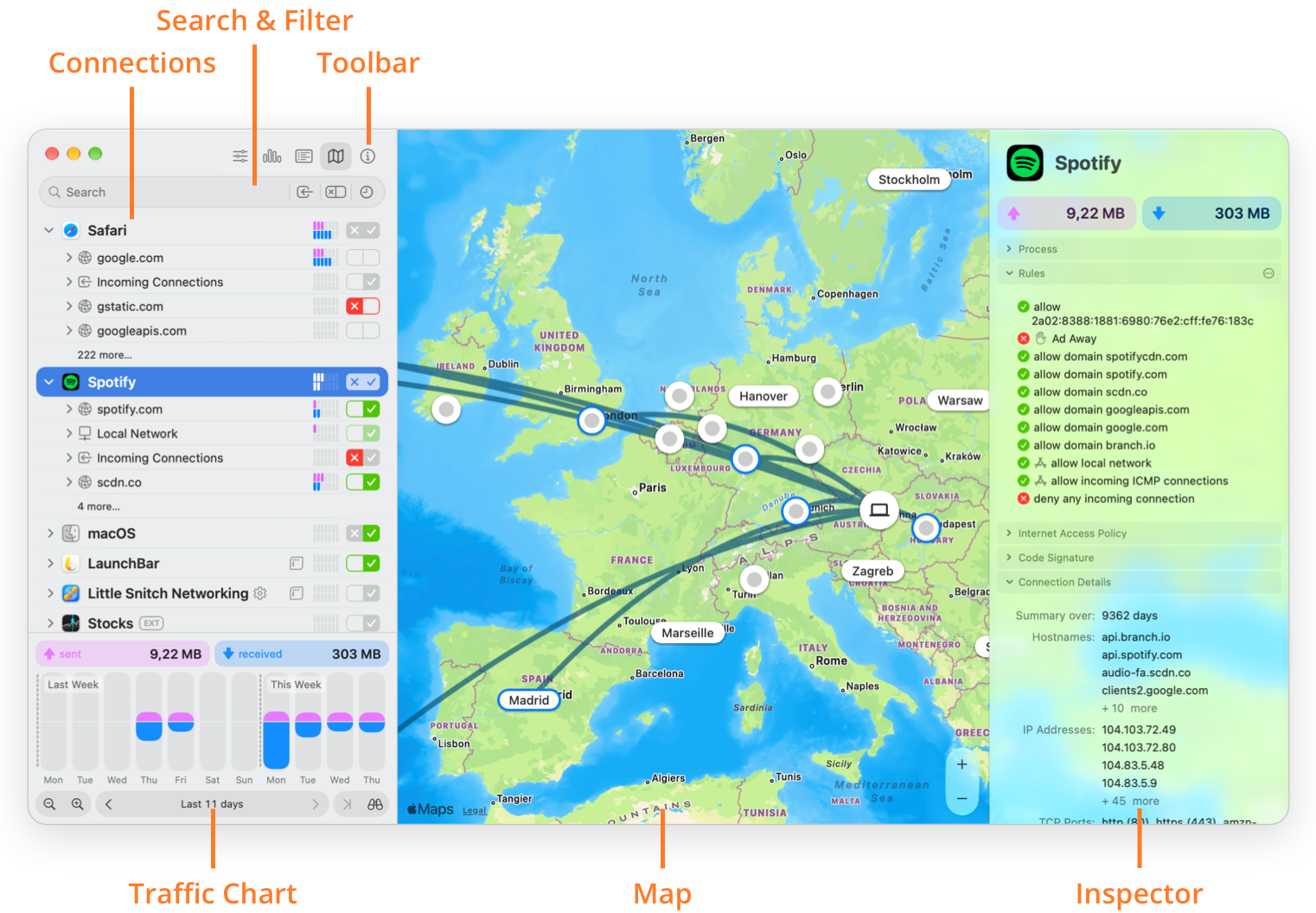
- Connections: A hierarchical list of all connections so far. By default, the top level shows processes and groups of apps, such as macOS. Expand a process to see its helper processes and domains, and expand a domain to see its hostnames. You can change this hierarchy, for example to Domain > Process, or to Country > Process > Domain > Host.
- Search & Filter: Search the connection list for text, and filter the connections by direction, by whether rules cover them, and by time interval.
Learn more about the search and filters… - Toolbar: The view options button for grouping, sorting, and display options, and the buttons that show or hide the traffic chart, the Connection Log, the map, and the Inspector.
- Traffic Chart: The traffic chart shows the traffic volume sent and received over time, going back up to one year.
- Map: Shows where the servers in the list are located. Little Snitch finds the location from the IP address of the server, using databases from MaxMind, Inc, IP2Location, db-ip, and Geonames. All of these databases are on your Mac, so Little Snitch doesn’t need online lookups that would reveal which servers you use. Instead of the map, you can show the Connection Log, which lists data transfers and denied or blocked connection attempts as they happen.
Learn more about the map… - Inspector: Shows everything about the selected connections: IP addresses, other hostnames, code signature information, locations, statistics, and the rules that apply. If an Internet Access Policy is available, the Inspector also shows it, so you can read what a process and its connections are for.
Learn more about the Inspector…
© 2016-2026 by Objective Development Software GmbH