 Little Snitch 4 Help
 Little Snitch 5 Help
 Little Snitch 6 Help
Connection alert
When Alert Mode is on and a connection attempt matches none of your rules, Little Snitch holds the connection and asks you what to do. Your answer becomes a rule, so next time, Little Snitch already knows whether to allow or deny this kind of connection.
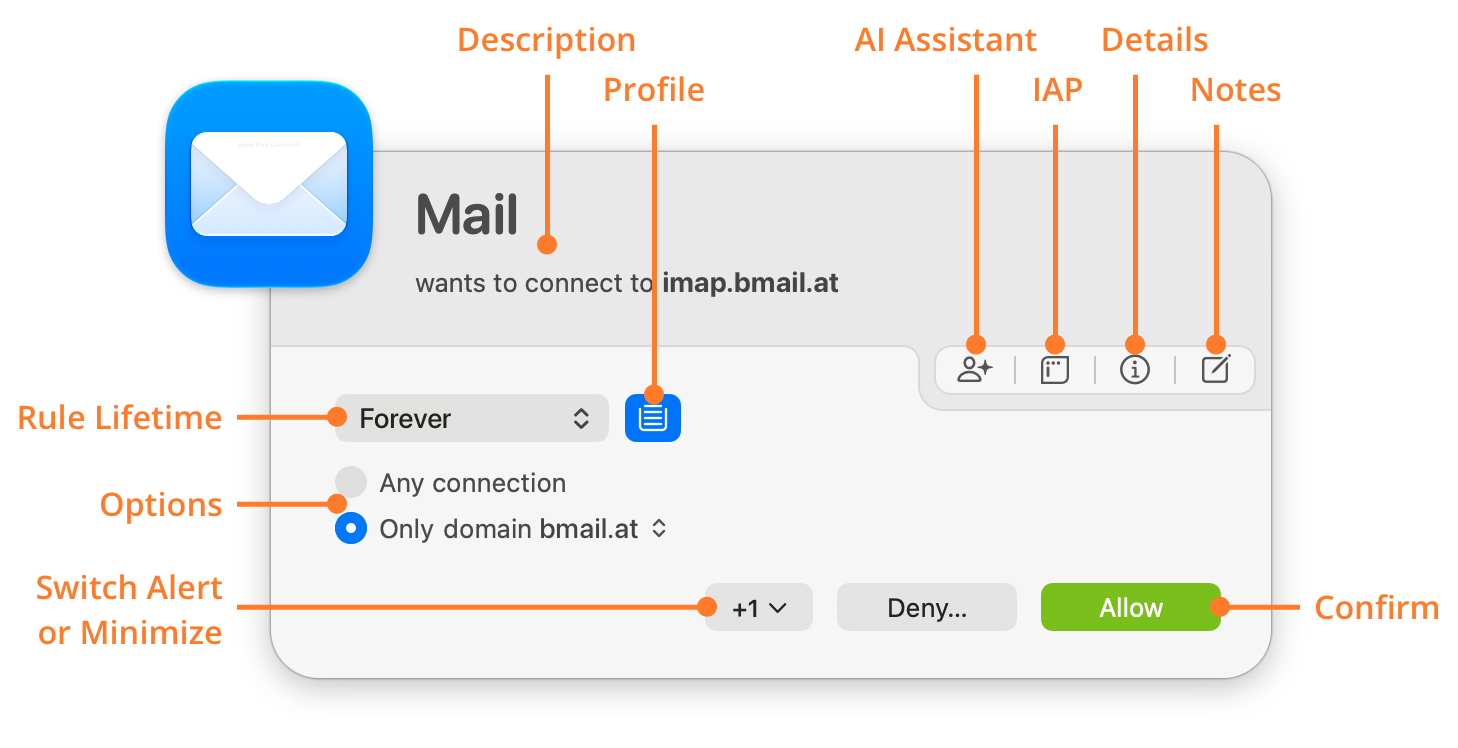
- Description: The name of the process and of the server1. If an app uses a helper process to make the connection, the alert shows that too, for example “LaunchBar via ssh”. Whether the alert also shows the port and the protocol depends on the detail level setting in Alert Settings.
- Profile: Click to choose whether the new rule applies only in the active profile or in all profiles. By default, it applies in the active profile. You can change this default in Settings.
- AI Assistant: Click this button to ask an AI service about the process and the server. Before anything is sent, Little Snitch shows you what it will transmit.
- IAP: Click this button to read the Internet Access Policy (IAP) of the process, which tells you what the connection is for. The button appears only if the process has an IAP.
- Details: Click this button to see all technical details of the connection.
- Notes: Click this button to add a note to the rule, for example why or when you created it.
- Rule Lifetime: How long the rule lasts. Choose Forever, or choose a time or an event, after which Little Snitch deletes the rule automatically.
- Options: How specific the rule is about the server, that is, its remote endpoint2. Which options the alert offers depends on the detail level setting in Alert Settings; with the Details section open, it always offers all of them. Click the domain name to choose between a rule for the whole domain and a rule for just the hostname.
- Switch Alert or Minimize: Click this button to minimize the alert. If other connection attempts are waiting for your answer too, the button shows how many, for example “+2” for two more. A click then opens a menu:
- Minimize minimizes the alert.
- Show Network Monitor opens Network Monitor and shows the waiting connection attempts.
- Below More Pending Connections, the menu lists the other connection attempts. Choose one to show it in the alert and answer it first.
- Confirm: Click Allow or Deny… to create a rule that allows or denies the connection. If the IAP of the app says what happens when you deny the connection, Deny… shows you this first. Then click Deny Anyway to deny the connection, or Cancel.
The buttons AI Assistant, IAP, Details, and Notes belong together. Each one opens a section in the middle of the alert, and only one section is open at a time. To close the open section, click its button again. If Little Snitch has a warning about the connection, a Warnings button appears to the left of these buttons, and the alert opens with the warnings section.
-
If Little Snitch doesn’t know a hostname for the server, or the hostname isn’t unique, the alert shows the IP address. If the hostname isn’t unique, but all possible hostnames are in the same domain, the alert also shows this domain. ↩
-
The other side of the connection can also be the Berkeley Packet Filter, a low-level service of macOS. A process can use it to read all network traffic, or to send and receive any kind of network data. So the Berkeley Packet Filter isn’t a server, but a service that a process can use to reach servers. ↩
© 2016-2026 by Objective Development Software GmbH