 Little Snitch 4 Help
 Little Snitch 5 Help
 Little Snitch 6 Help
Control Center settings
The Control Center pane decides what Little Snitch shows in the menu bar, and how the Control Center opens and looks.
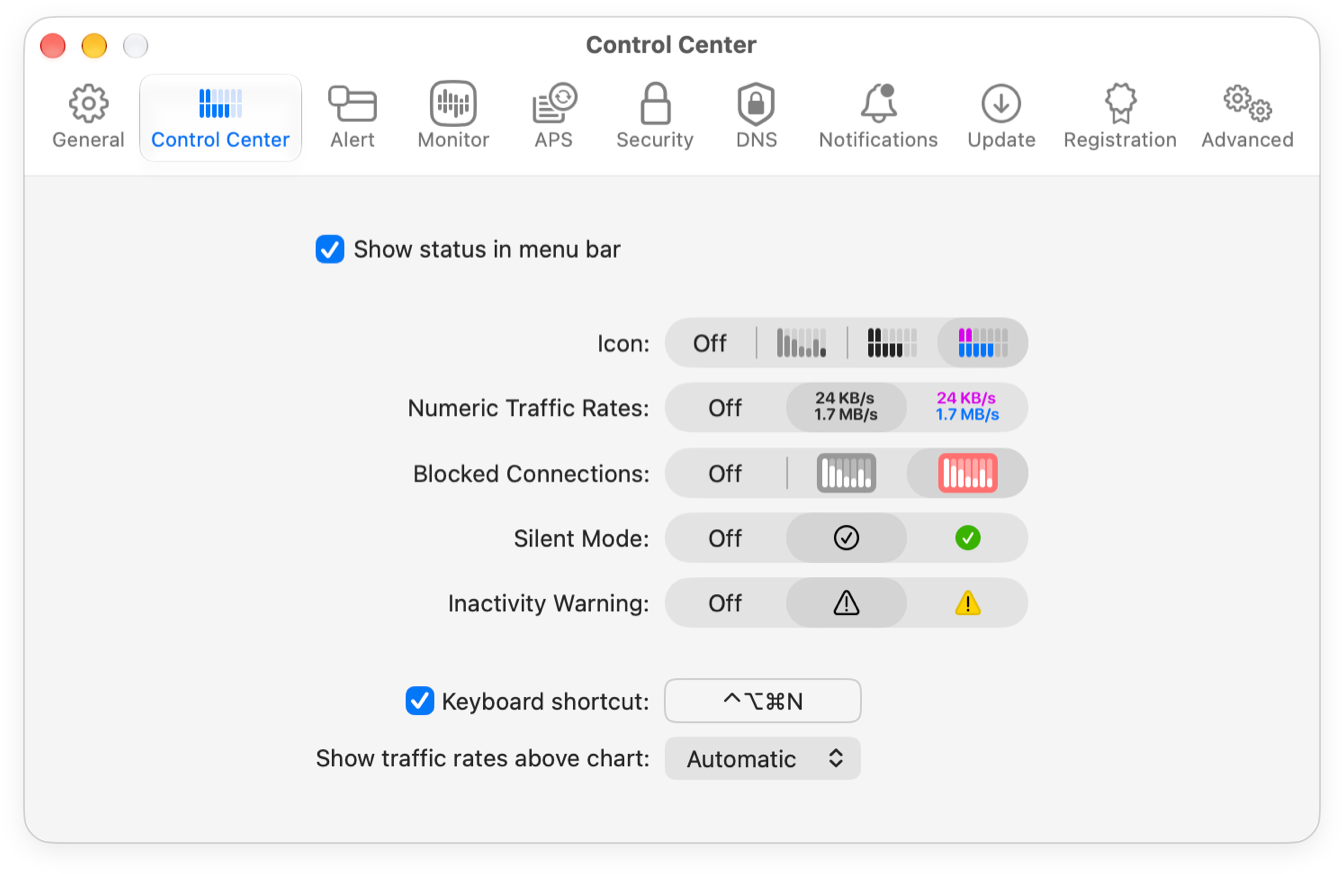
- Show status in menu bar: Whether Little Snitch shows its icon in the menu bar. Click this icon to open the Control Center, with quick access to the most common controls and a detailed view of the current network activity.
- Icon: How the icon shows network activity: as a chart of the traffic of the last five minutes, or as a meter of the current upload and download rates. The meter comes in black and in color. To show no traffic in the menu bar, choose Off.
- Numeric Traffic Rates: Whether the menu bar also shows the current upload and download rates as numbers, in black or in color.
- Blocked Connections: Whether the icon flashes when Little Snitch denies or blocks a connection.
- Silent Mode: Whether the menu bar shows a symbol while Silent Mode is on. This reminds you that Little Snitch decides about new connections on its own and doesn’t ask you.
- Inactivity Warning: Whether the menu bar shows a warning triangle while the network filter is off, so you don’t forget that Little Snitch isn’t filtering connections.
- Keyboard shortcut: A global keyboard shortcut that opens and closes the Control Center.
- Show traffic rates above chart: When the Control Center shows the current upload and download rates above its traffic chart:
- Automatic: Only if neither the menu bar icon nor a widget shows them already.
- Always: Always.
- Never: Never.
This setting doesn’t change the figures inside the Control Center’s traffic chart. Those show traffic volumes, see Focus mode.
Two things that affect the Control Center are set elsewhere:
- Whether it includes local network traffic is decided by Include local network traffic in the Network Monitor settings. The Control Center follows Network Monitor here.
- Which widgets it shows is up to you: click Edit Widgets in the Control Center to choose your widgets.
© 2016-2026 by Objective Development Software GmbH