 Little Snitch 4 Help
 Little Snitch 5 Help
 Little Snitch 6 Help
Getting started
You may have heard that getting started with Little Snitch is hard because of all the connection alerts. That’s true if you start in Alert Mode with no rules at all: Little Snitch then has to ask about every connection of every app and of macOS, and there are a lot of them.
It doesn’t have to be that way. Little Snitch has three tools that make the start much easier:
- Silent Allow: Little Snitch allows all connections and records them, and you decide later what to allow or deny.
- Rule groups: Ready-made rules allow whole groups of connections at once, for example everything from Apple.
- Blocklists: Ready-made lists block whole categories of servers, for example trackers, ads, or malware.
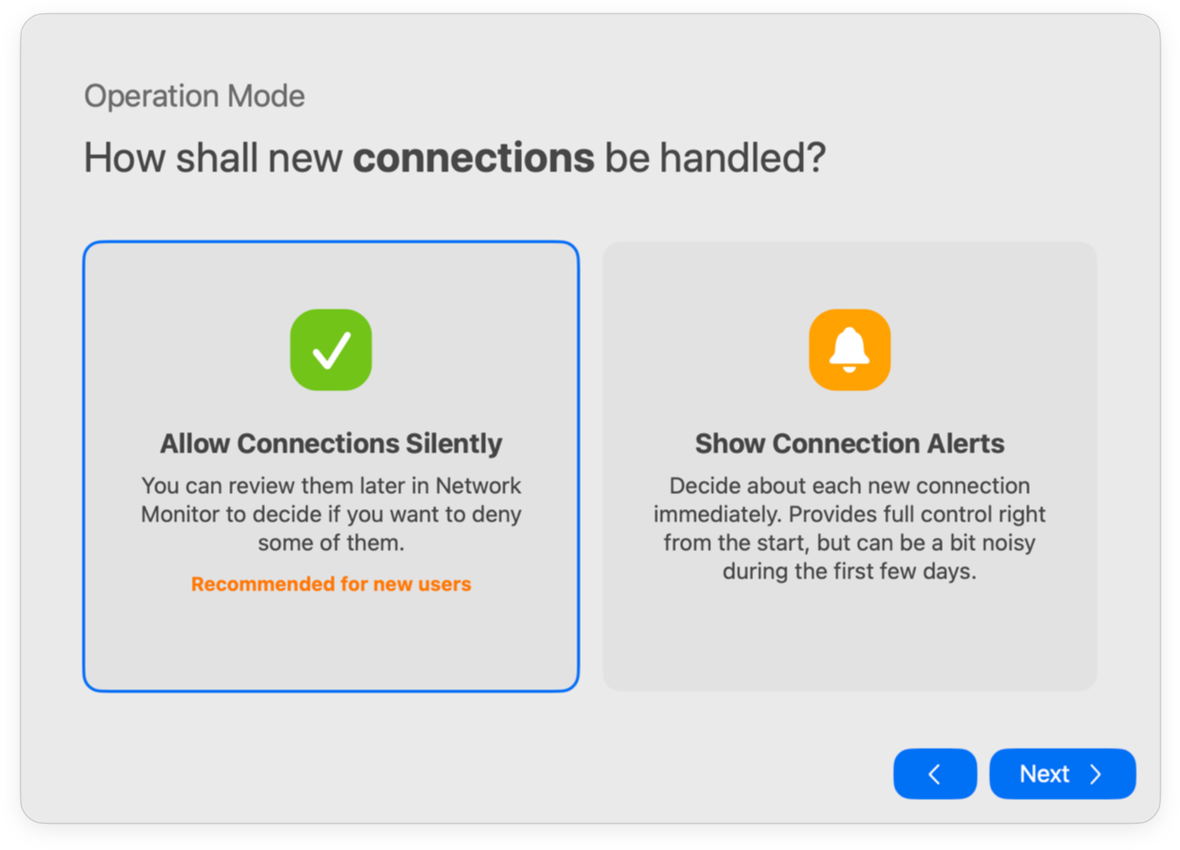
When you start Little Snitch for the first time, its welcome window gives you a short tour, then asks you about each of these:
- Operation Mode: Click Allow Connections Silently (Silent Allow) or Show Connection Alerts (Alert Mode).
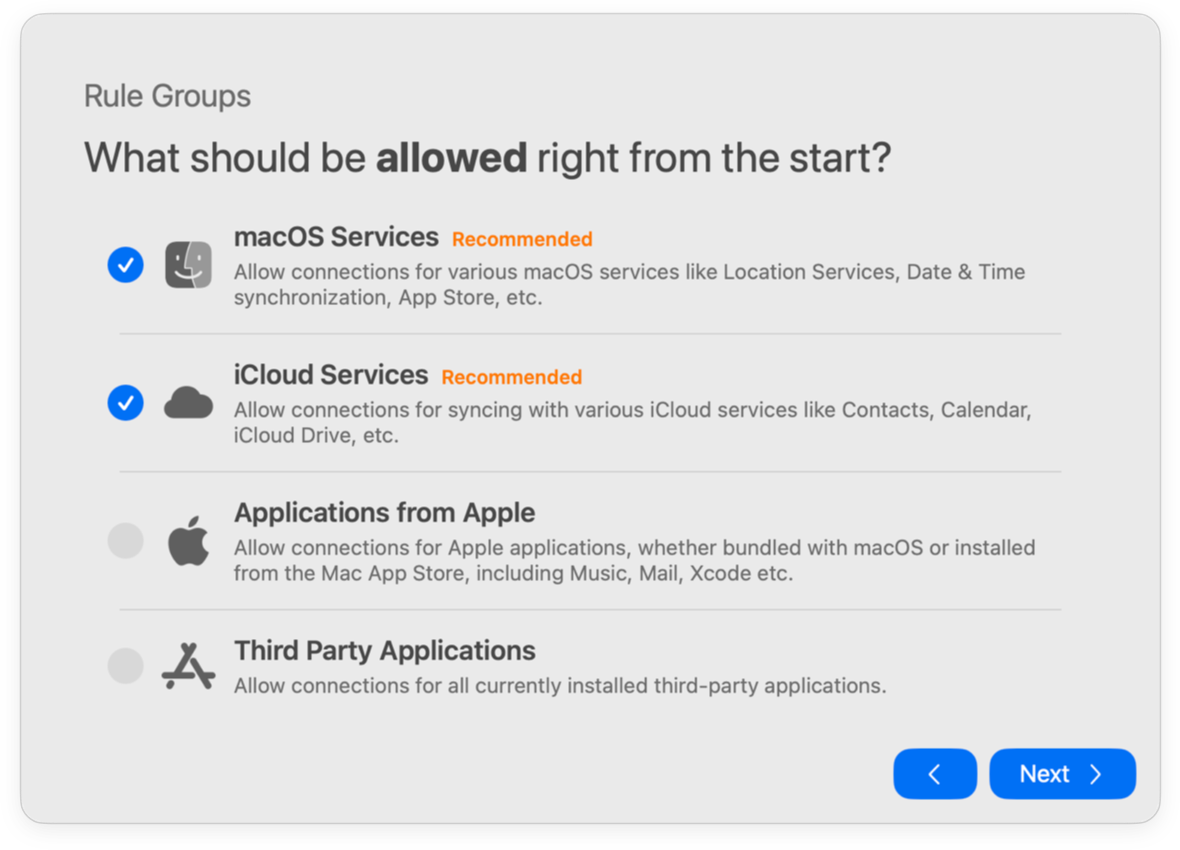
- Rule Groups: Select the rule groups that you want to use.
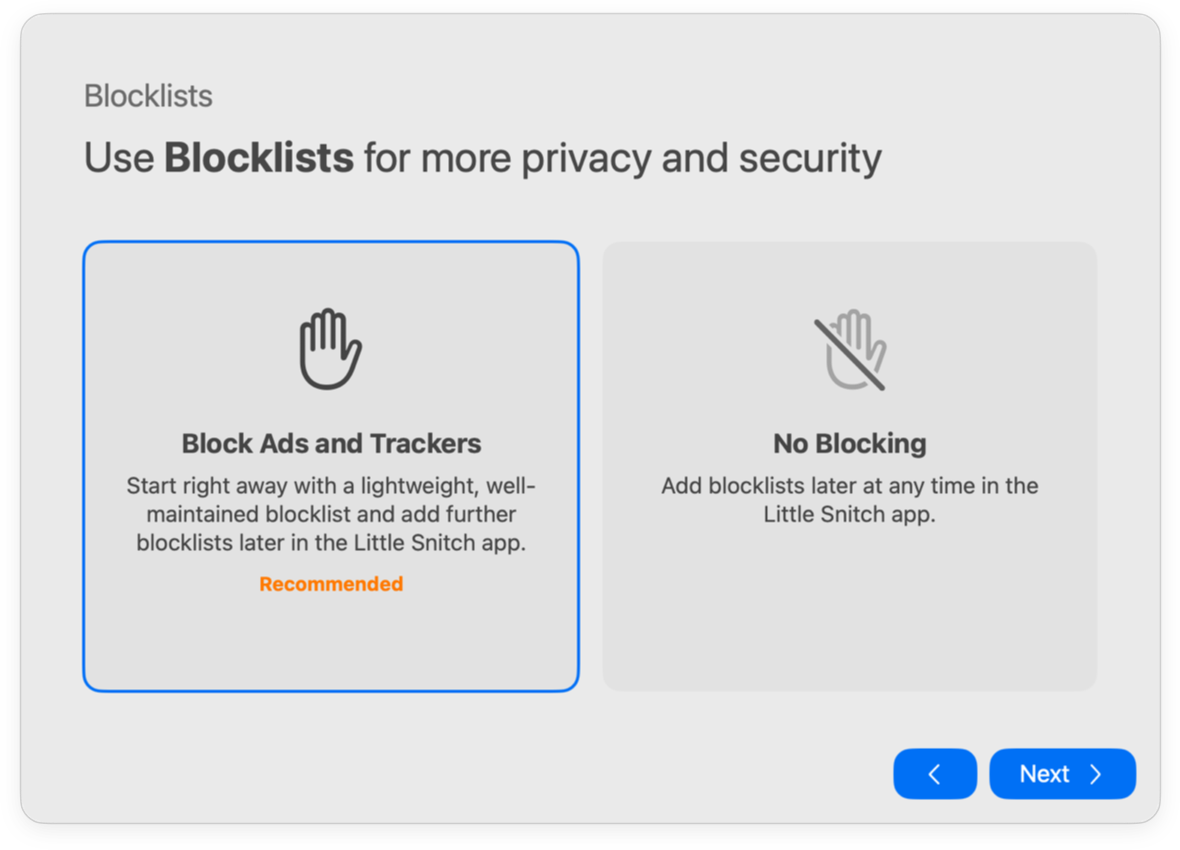
- Blocklists: Click Block Ads and Trackers or No Blocking.
Don’t worry about getting these right: you can change all of them at any time. Just choose what feels right for now. The sections below help you decide.
Silent Allow
Silent Allow doesn’t interrupt you with connection alerts. Little Snitch allows all connections and keeps track of which app connected to which server. Later, when you have time, open Network Monitor, go through the connections that occurred so far, and decide what to allow and what to deny.
The advantage: you decide when to spend time on Little Snitch, and you can make rules that really fit your needs. The disadvantage: you don’t get full protection right away. But you’ve probably used your Mac for years without knowing about these connections, so a few more days won’t make much difference.
Silent Allow is one of the two variants of Silent Mode. For more about both, see Operation modes.
Rule groups
Another way to get fewer alerts is to start with allow-rules that cover many connections at once. Little Snitch comes with these groups of ready-made allow-rules:
- macOS Services: Allows the background processes of macOS to connect to any server, and all apps to connect to Apple’s servers.
- iCloud Services: Allows all apps to connect to iCloud.
- Apple Apps: Allows all outgoing connections of the apps from Apple that are installed on your Mac.
- Third Party Apps: Allows all outgoing connections of all other apps that are installed on your Mac. Think twice before you add this group: with it, Little Snitch can’t tell you much about what your apps do.
For a full description of each group, see Rule groups.
Blocklists
Blocklists are the quickest way to get rid of unwanted connections. They take effect immediately, even in Silent Mode and before you’ve made any rules of your own.
Blocklists are maintained by volunteers and sorted by topic: some cover ad servers, some servers that track you, some sites with malware, and so on. Others combine several topics in one list.
To start with a blocklist, click Block Ads and Trackers in the welcome window. You can also add one later:
- Open the Little Snitch app from the Applications folder.
- In the sidebar of the Rules window, click Add Blocklists….

If you already have a blocklist, click the add button next to the Blocklists heading instead. See Add blocklists.
For more about blocklists, see Blocklists.
If an app does not work
If an app doesn’t work correctly, a rule or a blocklist may be denying or blocking a connection that the app needs. Here’s how to find out.
If the problem occurred in the last five minutes, start with the Recently Denied list in the Control Center. It shows the connections that Little Snitch denied or blocked, grouped by process. To find out which rule or blocklist entry is responsible, click the connection and choose Show Rules or Show in Blocklist.
For problems that occurred earlier, use Network Monitor:
- Click the action filter button, so that Network Monitor shows only denied connections.
- In the time filter menu, choose a time interval that includes the time when the app didn’t work.
- Find the app in the connection list. If it isn’t there, Little Snitch allowed all of its connections in this time interval, and the cause is somewhere else.
- Look at the denied domains and hostnames of the app. If you think a denied connection causes the problem, allow it with the rule button of its row.
If a blocklist blocked the connection, a rule for the domain may not be enough to override it. Use a rule for the hostname or a rule with high priority instead, see Blocklists.
© 2016-2026 by Objective Development Software GmbH