 Little Snitch 4 Help
 Little Snitch 5 Help
 Little Snitch 6 Help
Minimized connection alert
A connection alert can open in the middle of your work. It takes up a lot of space and stays in front of other windows. If you want to finish what you’re doing first, or look into the connection before you answer, minimize the alert and come back to it later. It stays minimized until a new connection attempt occurs that no rule matches.
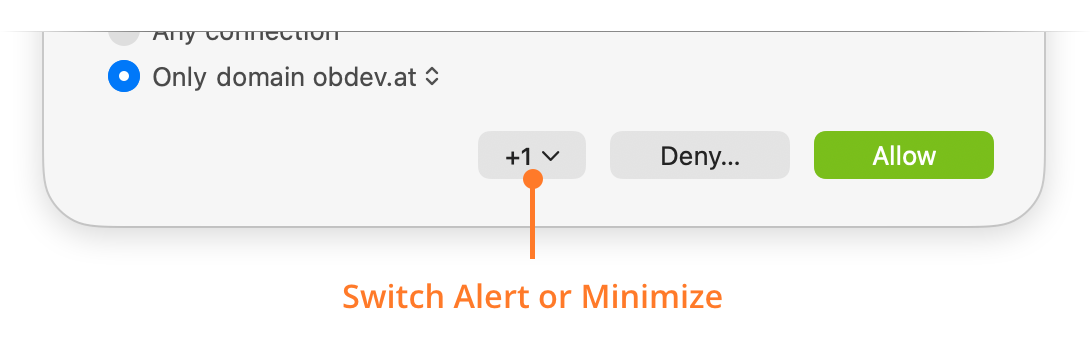
To minimize the alert, use the button to the left of Deny… (callout Switch Alert or Minimize):
- If no other connection attempt is waiting for your answer, the button shows only an arrow. Click it to minimize the alert.
- If other connection attempts are waiting too, the button shows how many. “+2”, for example, means that two more connection attempts are waiting. Click the button for a menu, then choose Minimize, or choose the connection attempt that you want to answer next.
You can also press Command-M to minimize the alert.
Answer the alert soon. Little Snitch holds the connection attempt until you answer, and while the process waits for its data, it can stop responding or work only partly.
Use the minimized alert
The minimized connection alert sits in a corner of the screen, in front of other windows, and shows how many connection attempts are waiting for your answer:
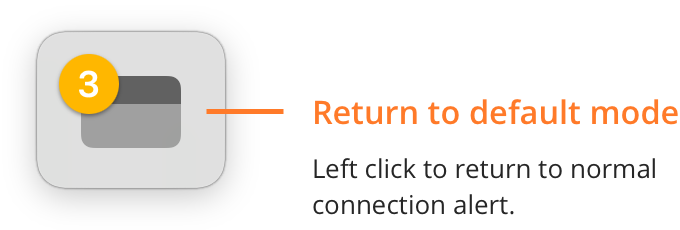
- To return to the full connection alert, click the minimized alert (callout Return to default mode).
- If it’s in your way, drag it to a different corner of the screen.
- For more options, right-click it:
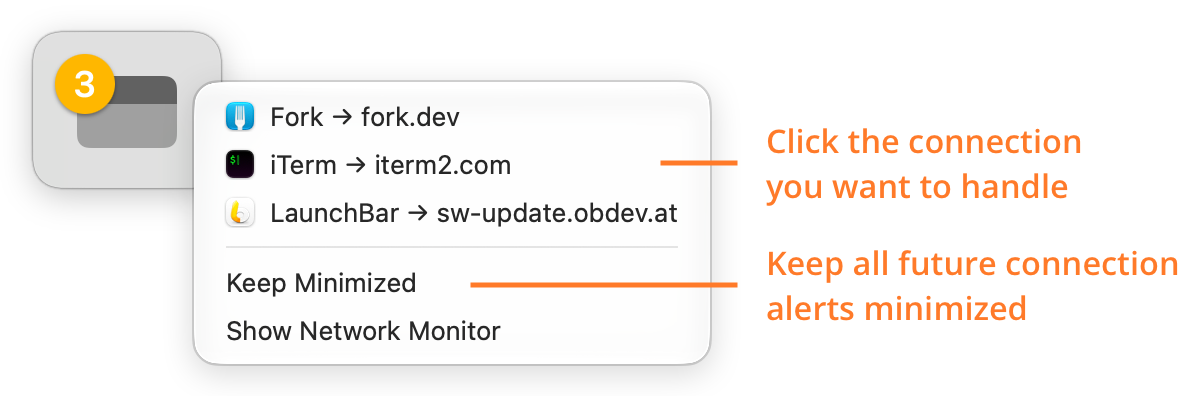
The context menu has the following items:
- The connection attempts that are waiting for your answer. Choose the one that you want to answer.
- Keep Minimized: Opens all future connection alerts minimized. Little Snitch turns this option off again when you answer the last minimized alert, and you can also turn it off yourself in this menu.
- Show Network Monitor: Opens Network Monitor.
Answer connection attempts in Network Monitor
While a connection alert or a minimized alert is open, Network Monitor shows the waiting connection with a blinking orange rule button:
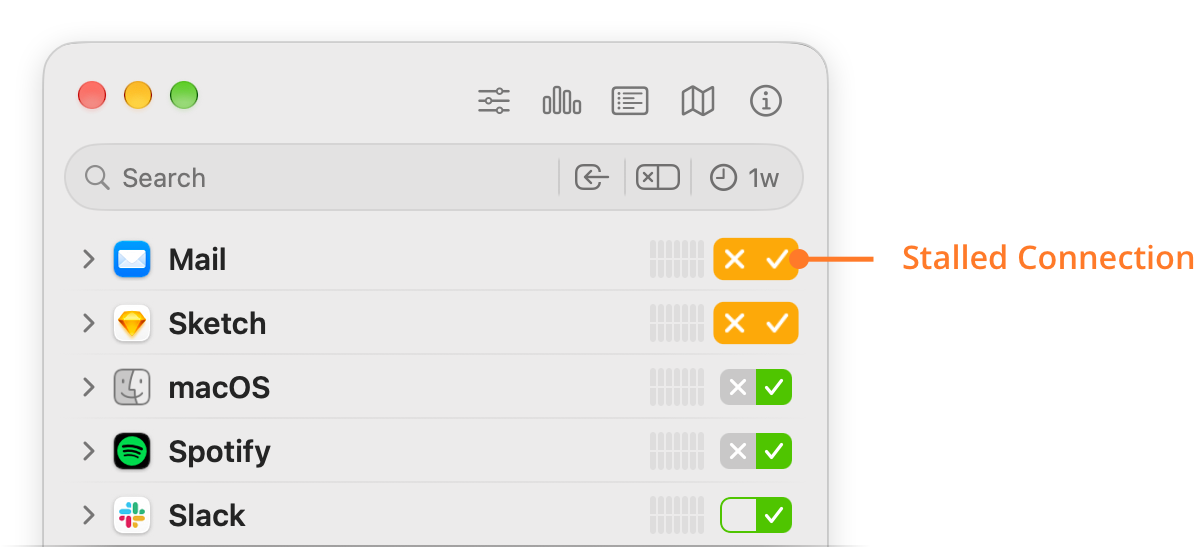
This gives you a second way to answer: instead of using the connection alert, create the rule in Network Monitor. Click the rule button of the process, the domain, or the hostname, depending on how broad you want the rule to be.
© 2016-2026 by Objective Development Software GmbH