 Little Snitch 4 Help
 Little Snitch 5 Help
 Little Snitch 6 Help
Notifications settings
Little Snitch uses macOS notifications to tell you about events that don’t need a decision from you. In the Notifications pane, you choose which events these are.
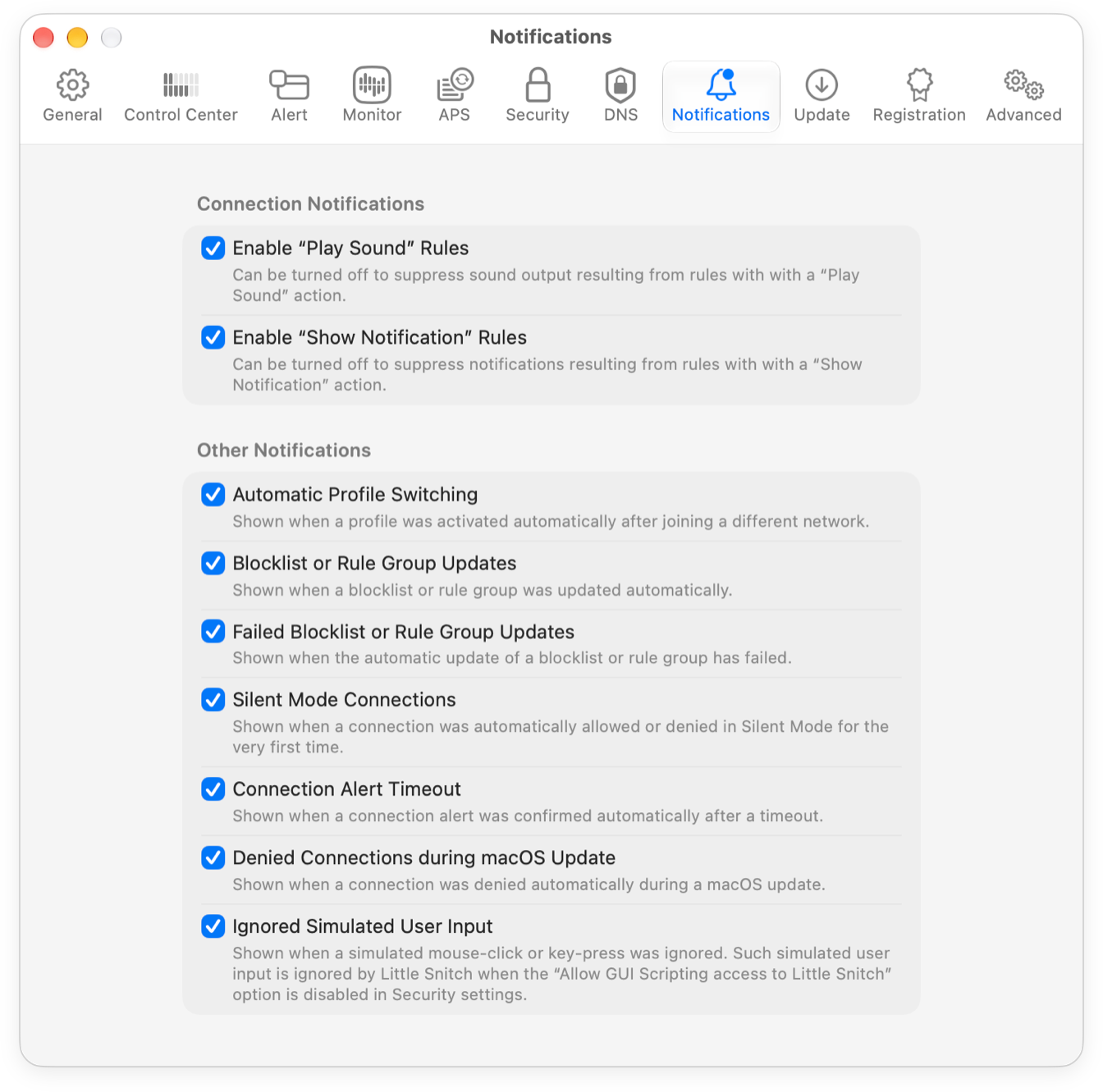
- Enable “Play Sound” Rules: Whether Little Snitch plays a sound when a sound rule matches.
- Enable “Show Notification” Rules: Whether Little Snitch shows a notification when a notification rule matches.
- Automatic Profile Switching: Whether you get a notification when Little Snitch changes the active profile on its own.
- Blocklist or Rule Group Updates: Whether you get a notification when Little Snitch has updated a blocklist or a remote rule group.
- Failed Blocklist or Rule Group Updates: Whether you get a notification when such an update fails.
- Silent Mode Connections: Whether you get a notification when Little Snitch allows or denies a new connection in Silent Mode. Network Monitor shows these connections as unconfirmed, with a blue rule button.
- Connection Alert Timeout: Whether you get a notification when Little Snitch confirms a connection alert automatically, because nobody answered it in time.
- Denied Connections during macOS Update: During a macOS update, Little Snitch can’t show connection alerts, so it denies all connections that no rule matches. With this option on, you get a notification for each of them.
- Ignored Simulated User Input: For security reasons, Little Snitch doesn’t accept remote control through assistive technologies (you can change this in the security settings). If an assistive technology doesn’t work, this notification tells you why. To hide it, turn off this option.
© 2016-2026 by Objective Development Software GmbH