 Little Snitch 4 Help
 Little Snitch 5 Help
 Little Snitch 6 Help
About rule groups
A rule group bundles rules that belong together, so you can turn them all on or off with a single click.
There are three kinds of rule groups:
- Factory rule groups, which come with Little Snitch, for example macOS Services or Apple Apps.
- Remote rule groups, which Little Snitch downloads from a server, in
.lsrulesformat, and keeps up to date. They’re a good way to keep the same rules on several Macs, for example in a company. - Local rule groups, which help you organize your own rules by topic.
To add a rule group:
- In the sidebar of the Rules window, click the add button next to the Rule Groups heading.
- Choose the kind of rule group.
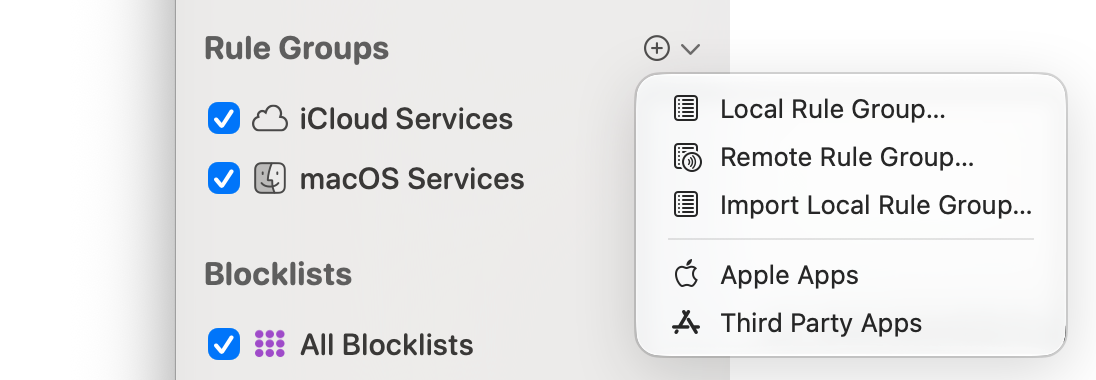
The rules in remote rule groups are always global: when you enable or disable them, the change affects all users of your Mac. That’s why Little Snitch asks for the name and password of an administrator when Allow Global Rule Editing is off in Settings > Security, for example when you add, enable, or disable a remote rule group.
Factory rule groups
The factory rule groups cover connections that many people want to allow without looking at each one:
- macOS Services: If you trust Apple and don’t want to deal with the connections of macOS and to Apple’s servers, enable this group. It allows all system background processes to connect to any server, and all apps to connect to Apple’s servers. That covers most connections of a fresh macOS installation, but not the other connections of your apps.
- iCloud Services: Allows the connections of all apps to iCloud domains. It’s a separate group, because you might trust Apple but not use iCloud.
- Apple Apps: When you add this group, Little Snitch looks for apps from Apple in the usual locations, recognizing them by their code signature, and creates rules that allow all outgoing connections of these apps. That’s generous, because most of these apps never connect to a server. After a few weeks, check the rules and delete those that have never been used.
- Third Party Apps: When you add this group, Little Snitch looks for apps that are not from Apple in the usual locations, and creates rules that allow all outgoing connections of these apps. Add this group only if you trust all apps that you installed before Little Snitch. Apps that you install later aren’t covered.
Apple Apps and Third Party Apps are called app rule groups. They aren’t in the sidebar until you add them, and Little Snitch then builds them from the apps that are installed at that moment. See Manage rule groups.
You can enable or disable a rule group at any time: in the Rule Groups section of the sidebar of the Rules window, select or clear the checkbox of the group.
Remote rule groups
Remote rule groups let you share rules between Macs. Little Snitch downloads them in .lsrules format from a secure web server, and checks for updates regularly. To set up a remote rule group, or to import an .lsrules file without a server, see Manage rule groups.
© 2016-2026 by Objective Development Software GmbH