 Little Snitch 4 Help
 Little Snitch 5 Help
 Little Snitch 6 Help
Search and filter
The connection list can get long. To find what you’re looking for, use the search field and the filters next to it.
The search field finds text anywhere in the connection list, including parts of words. By default, Network Monitor searches the process names and the hostnames. When you press Return, your search term becomes a blue token, and you can type another one. Network Monitor then shows only the items that match all of your search terms.
Each token has a menu in which you choose its search scope. This lets you search only domains or only apps, for example, or search IP addresses, protocols, or locations.
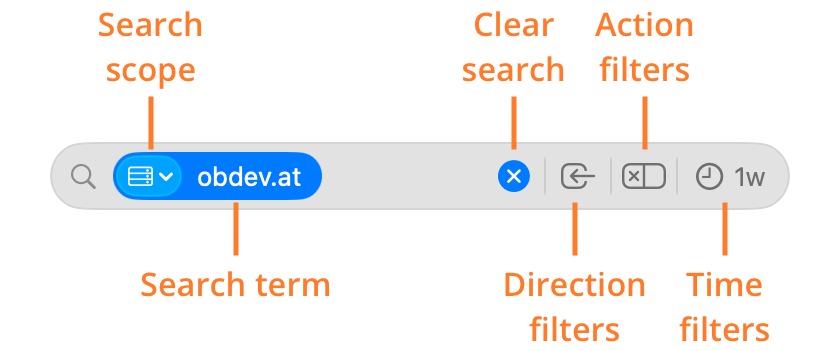
- Search scope: Where to search for the text, for example Process, Hostname, IP Address, Port, or Country. Any searches all of them.
- Search term: The text that you want to find.
- Clear search: Deletes all search terms. The filters stay on.
- Direction filters: Click this button to show only incoming connections, or click and hold it to choose Outgoing instead. To remove the filter, click the button again.
- Action filters: Click this button to show only denied connections. Click and hold it for more options: Allowed, Unconfirmed (connections that occurred in Silent Mode and have no rule yet), and Recent Sound Notifications. To remove the filter, click the button again.
- Time filters: Click this button for a menu with time filters, for example From Now.
Want to know which new connections an action causes, such as loading a web page? Use the time filter From Now:
-
Choose the time filter From Now, or press Command-K.
The connection list is now empty, and new connections appear as they occur.
-
Do the action, for example load the web page.
-
Look at the new connections in the list.
Local network connections
The view options button, the first button in the toolbar, contains one more filter: Show Local Network. With this option on, Network Monitor also shows the connections to devices in your home or office network, such as your printer, your router, or a network storage device. You can also change it with View > Show Local Network.
The view options button has a few more options:
- Show Network Extensions: Shows the connections of network extensions, which are mostly VPN apps. This is the same setting as Include traffic of network extensions in Settings > Monitor.
- Show Connections of Other Users: Shows the connections of processes of other user accounts on your Mac.
- Float on Top: Keeps the Network Monitor window above the windows of other apps.
© 2016-2026 by Objective Development Software GmbH