 Little Snitch 4 Help
 Little Snitch 5 Help
 Little Snitch 6 Help
Connection Log
The map shows where your connections go. The Connection Log shows when: it lists data transfers and denied or blocked connection attempts as they happen, one line each, with the time, the process, the direction, and the server.
That makes it the right tool for questions about the moment: What is this app doing right now? What happened when I clicked that button? Why did the page I just loaded look broken?
Show the Connection Log
- Open Network Monitor.
- Click the Connection Log button in the toolbar, choose View > Show Connection Log, or press Command-G.
The Connection Log takes the place of the map in the window. To show the map again, click the map button in the toolbar or choose View > Show Map. To hide the Connection Log, click the Connection Log button again.
Overview
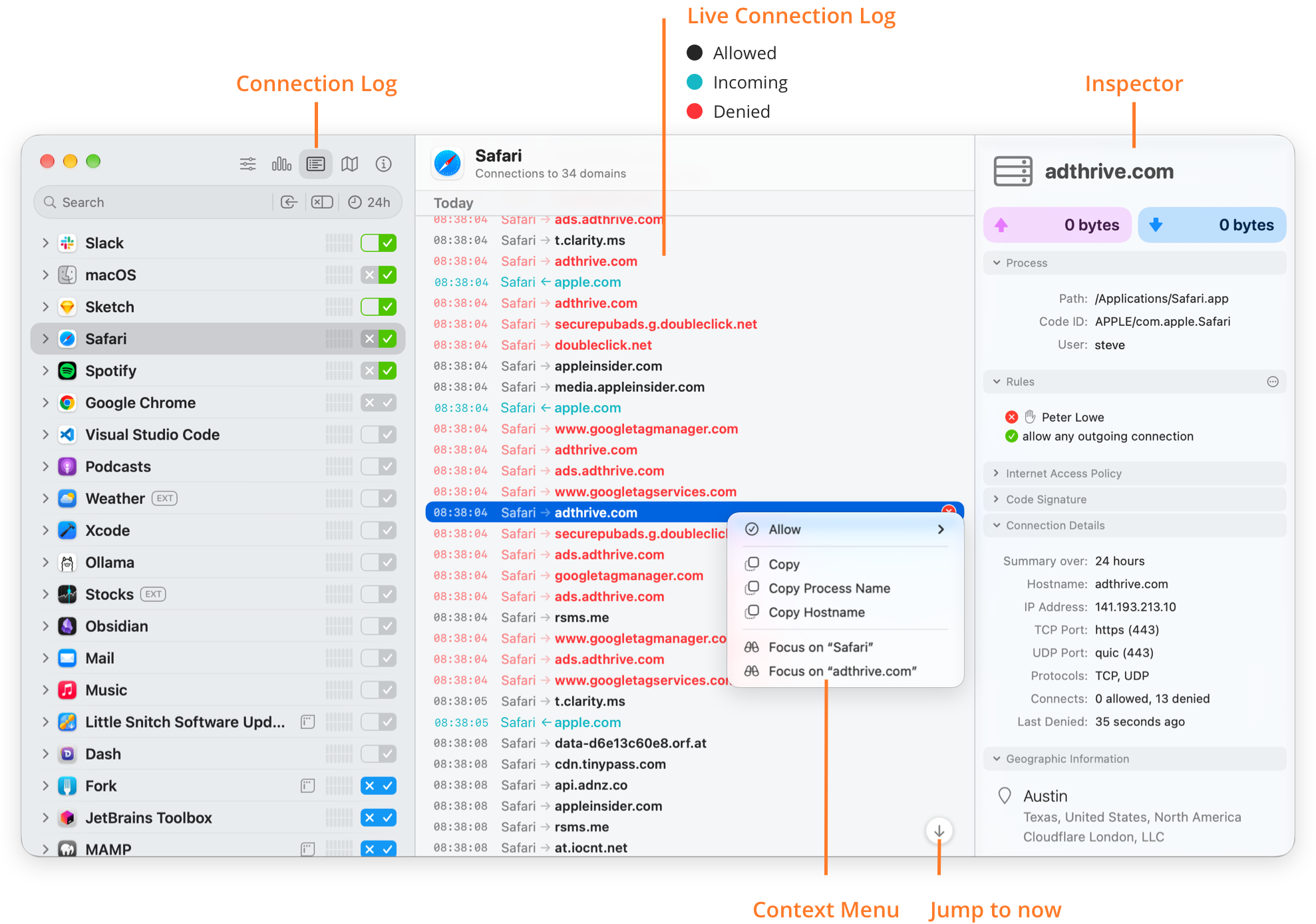
- Connection Log: The toolbar button that shows the Connection Log instead of the map.
- Live Connection Log: One line for each data transfer or connection attempt, with the newest line at the bottom. An arrow shows the direction: → for outgoing, ← for incoming. The color shows what happened:
- Allowed (black): Little Snitch allowed an outgoing connection.
- Incoming (teal): A server connected to your Mac.
- Denied (red): Little Snitch denied or blocked the connection attempt.
- Inspector: Select a line to see the details of its connection in the Inspector: the process, the rules, the Internet Access Policy, the code signature, the connection details, and the location.
- Context Menu: Right-click a line for more actions:
- Allow: A submenu with Allow Permanently, Allow for 5 Minutes, and Allow Until Logout. For an allowed connection, this item is Deny, with the same choices.
- Copy, Copy Process Name, Copy Hostname: Copy the line, the name of the process, or the hostname.
- Focus on “…”: Shows only the connections of this process or hostname in the connection list.
- Jump to now: After you scroll up to older lines, click this button to return to the newest line.
A selected line isn’t red, even if its connection was denied. Instead, Little Snitch shows a red mark at its right end.
Which connections the log shows
The Connection Log follows the connection list:
- If you select an app in the connection list, the log shows only the connections of this app.
- If you select a domain or a hostname, the log shows only the connections to it.
- If you select nothing, the log shows all connections of the connection list, and the header above the log says All Connections.
The search and filters and the time interval that you select in the traffic chart apply to the Connection Log as well. The header above the log always tells you what the log contains, for example “Connections to 34 domains”.
So to watch a single app, select it in the connection list. To watch everything, select nothing.
Example: Why was this connection blocked?
The screenshot above shows a typical case. Safari is selected in the connection list, so the log shows only the connections of Safari: the header says “Connections to 34 domains”, and a heading above the lines shows the day (Today).
One line is a blocked connection to adthrive.com. Selecting it shows its details in the Inspector: Safari sent and received no data, and Little Snitch blocked all 13 connection attempts. The Rules section explains why: the blocklist Peter Lowe blocked the connection, even though the rule allow any outgoing connection also applies, because blocklist entries win over most rules. If you wanted Safari to reach this server after all, the context menu of the line offers Allow.
Older lines
To see older lines, scroll up. Little Snitch loads them as you scroll.
The further back you go, the less precise the times are, because Little Snitch stores older traffic with less precise timestamps. For traffic older than 30 days, the time is correct only to the hour.
© 2016-2026 by Objective Development Software GmbH