 Little Snitch 4 Help
 Little Snitch 5 Help
 Little Snitch 6 Help
Connection Alert settings
The Alert pane lets you adapt the connection alert to the way you work: how much it shows, which rule it suggests, and what happens when nobody is there to answer it.
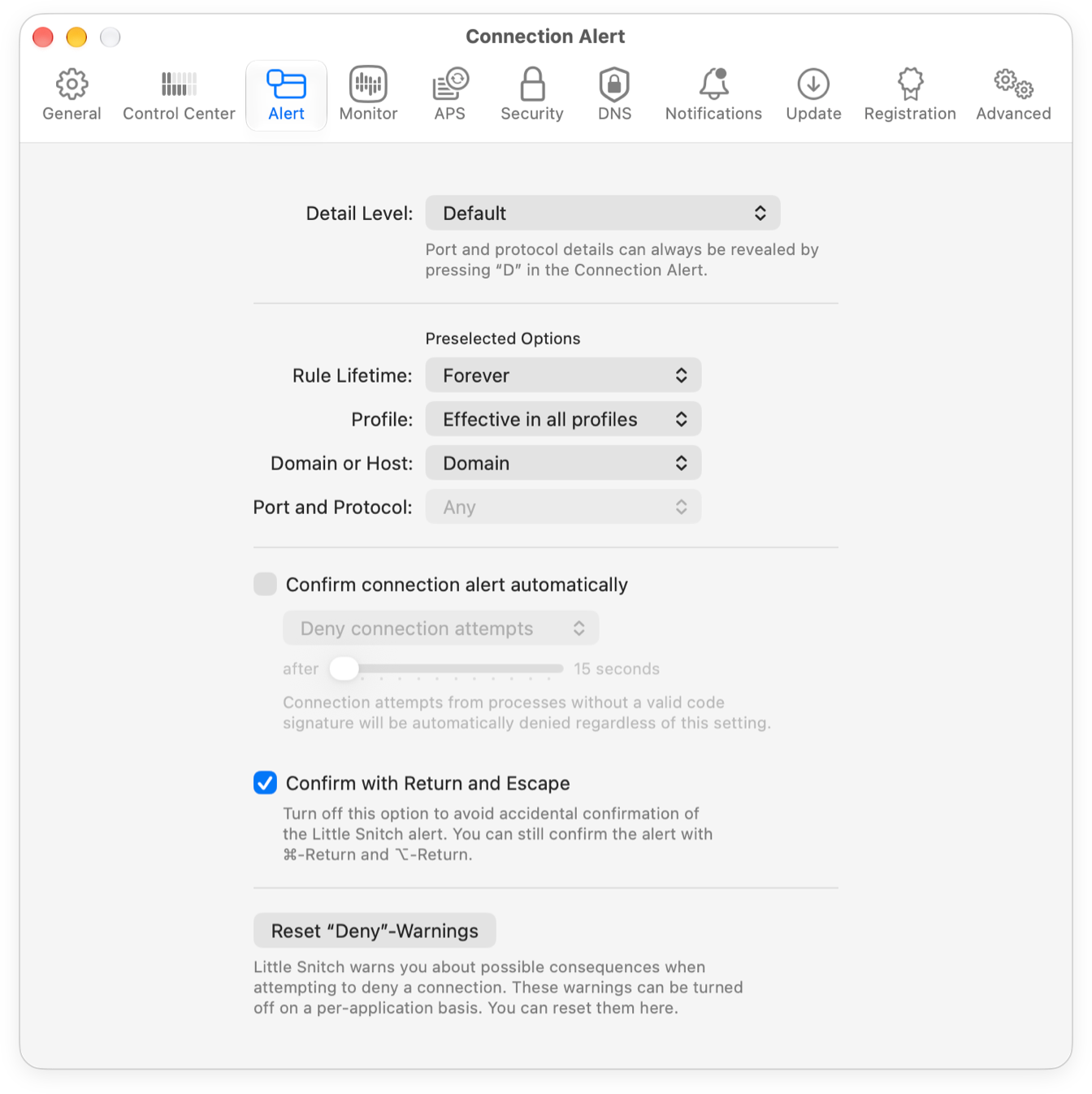
- Detail Level: How many details of the connection the alert shows, and how many options it offers for the rule. Too many details can hide what’s important, but some people want to see everything. Either way, the Details button in the alert always shows all details and all options.
- Preselected Options: The kind of rule that the alert suggests when it opens. People have different habits here: some make all rules temporary, some make rules only for domains, and others make every rule as specific as possible. Set your usual kind of rule with Rule Lifetime, Profile, Domain or Host, and Port and Protocol, and you can create it with a single click.
- Confirm connection alert automatically: If you use your Mac through a remote login, for example with
ssh, nobody is there to answer an alert. Without a rule for the login, the alert waits, and the login can fail. With this option, the alert allows or denies the connection on its own after the time that you set. This is similar to Silent Mode, but when you’re at your Mac, you can still answer the alert yourself. - Confirm with Return and Escape: Whether the Return key allows the connection and the Escape key denies it. If an alert opens while you’re typing, you can hit one of these keys by accident. Little Snitch ignores all keys during the first second after the alert opens, which prevents most of these accidents. If it still happens to you, turn off this option.
- Reset “Deny”-Warnings: When you deny a connection that is important for an app, Little Snitch warns you. The developer of the app marks these connections in its Internet Access Policy (IAP). If you selected Don’t show again for this process in such a warning, click this button to show all of these warnings again.
© 2016-2026 by Objective Development Software GmbH