 Little Snitch 4 Help
 Little Snitch 5 Help
 Little Snitch 6 Help
Operation modes
Most of the time, a rule decides what happens to a connection: it allows it or denies it. But what if no rule matches, for example because an app connects to a server for the first time? In that case, the operation mode decides how Little Snitch handles the connection.
There are two operation modes: Alert Mode, which asks you, and Silent Mode, which doesn’t. Silent Mode comes in two variants, so you have three choices in all. To switch, open the Control Center, click the operation mode, and choose Alert, Silent Allow, or Silent Deny.
Alert Mode
In Alert Mode, Little Snitch asks you. It shows a connection alert, and the connection waits until you decide whether to allow or deny it.
Your answer becomes a rule, so Little Snitch doesn’t ask again. The rule covers not just this connection, but similar ones in the future as well. By default, it applies to the server’s entire domain. When Mail connects to imap.bmail.at, for example, the rule covers all of bmail.at. You can make the rule broader or narrower with the pop-up menu in the alert:
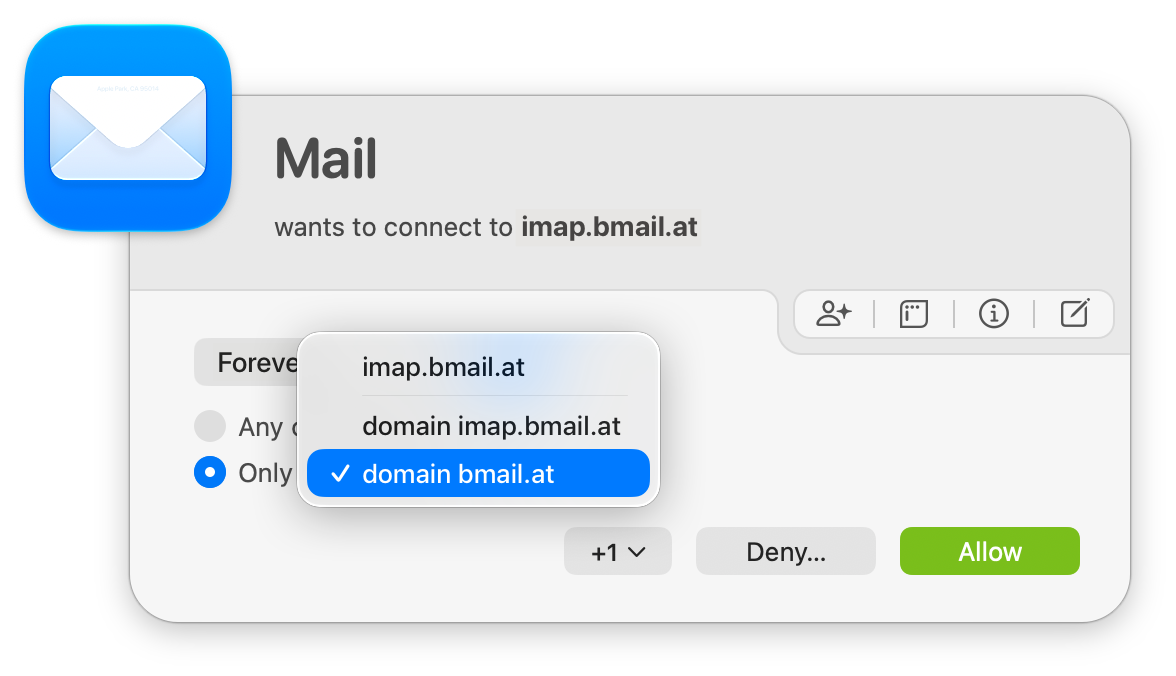
To change the defaults, use the settings.
Silent Mode
In Silent Mode, Little Snitch doesn’t ask. It handles connections without a matching rule on its own, in one of two ways:
- Silent Allow allows them.
- Silent Deny denies them.
Either way, Little Snitch doesn’t create any rules for you. Instead, Network Monitor keeps track of every connection that still needs a rule, so you can decide later, when it suits you.
Silent Allow is the right choice for almost everyone, especially when you’re new to Little Snitch. Silent Deny is meant for special cases, such as an unattended server with high security requirements.
Start with Silent Allow
Right after you install Little Snitch, most apps on your Mac make connections that no rule covers yet. In Alert Mode, you’d see dozens of alerts in the first hour. There’s a calmer approach, in three steps: let Little Snitch watch silently for a while, then confirm all the connections that it saw in one go, and only then switch to Alert Mode.
Step 1: Let Little Snitch watch
- In the Control Center, choose Silent Allow.
- Use your Mac as usual for a few days, or up to a week if you don’t use it much.
During this time, Little Snitch allows all connections and records them in Network Monitor. The more of your usual work happens in this time, the more connections you can confirm at once in the next step.
Step 2: Confirm the new connections
After that time, open Network Monitor. It might look like this:
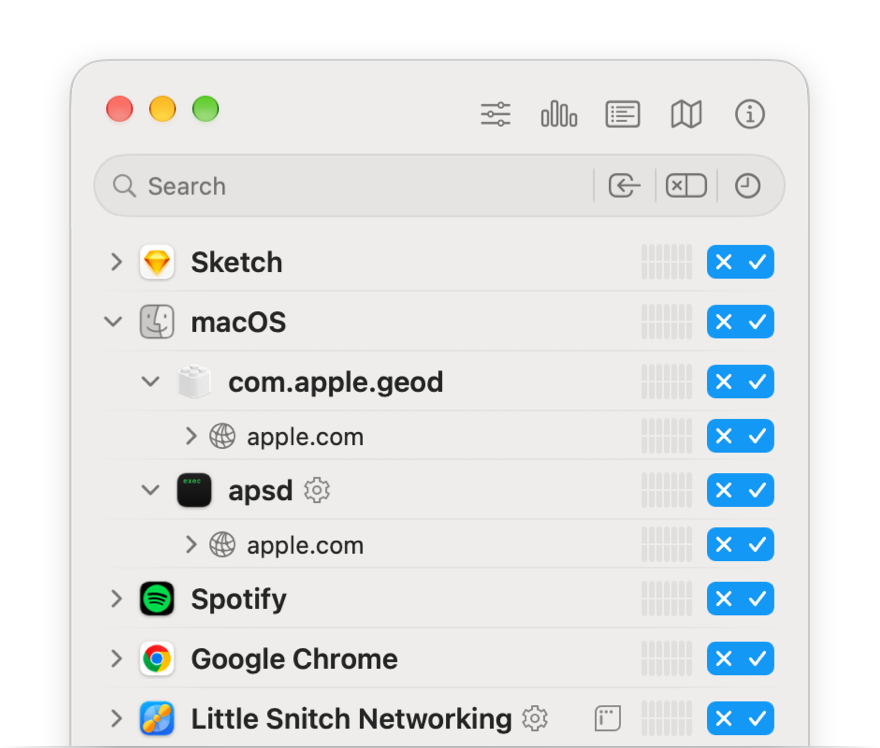
A blue rule button means that the row contains unconfirmed connections: they happened in Silent Mode, but no rule covers them yet. To confirm them, decide whether to allow or deny them. Each button has two symbols:
- Click the deny symbol to deny the connections in that row.
- Click the allow symbol to allow them.
Either way, Little Snitch creates a rule, and the button is no longer blue.
You can decide at any level. A decision for an app covers all of its connections. For finer control, click the disclosure triangle to expand the row, and decide for individual domains or servers instead. In general, decide at the highest level that makes sense: one rule for an app is easier to keep track of than ten rules for its servers.
Work through the list until no blue buttons are left.
Example: Stop email tracking
Sometimes, though, a more detailed decision is worth the effort. Apple’s Mail app is a good example. Mail needs to connect to your mail servers, such as imap.gmail.com and smtp.gmail.com for Gmail, or it can’t receive or send email. But Mail also connects to servers like google.com, shopify.com, or klclick.com to load images in newsletters and spam. Many senders hide a unique tracking code in each image address. As soon as Mail loads the image, the sender knows that you opened the message.
To stop this kind of tracking:
- Expand the Mail row and allow your mail servers. Some providers need more servers: Gmail, for example, also uses
people.googleapis.comandwww.googleapis.com. - Deny Mail as a whole: click the deny symbol of the button in the Mail row.
The rules for your mail servers are more specific than the rule for Mail, so they take precedence. Mail can now connect only to the servers that you allowed.
Step 3: Switch to Alert Mode
Once rules cover all the connections that Little Snitch recorded, switch to Alert Mode. Don’t switch earlier: in Alert Mode, Little Snitch shows an alert for every connection that is still unconfirmed.
To switch, open the Control Center, click the operation mode, and choose Alert:
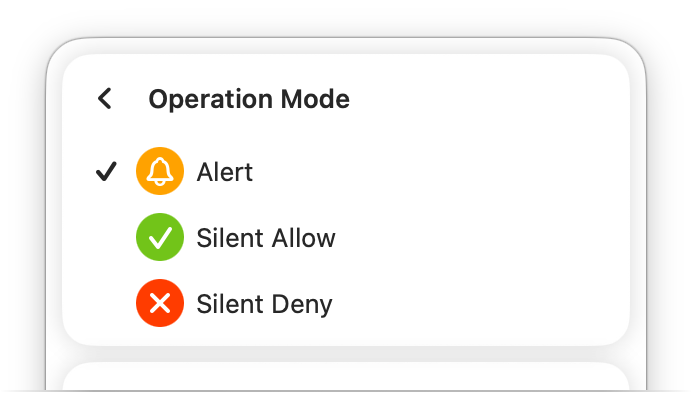
From now on, Little Snitch asks you only about connections that your rules don’t cover yet. After your review, these should be rare.
Still getting more alerts than you’d like? Switch back to Silent Allow for a while. Little Snitch then collects the new connections silently again, and you can confirm them later in one go, as in step 2. Watch how many new blue buttons appear: if only a handful show up over a few days, that’s a good sign that Alert Mode won’t bother you with many alerts either, and it’s time to switch back.
© 2016-2026 by Objective Development Software GmbH