 Little Snitch 4 Help
 Little Snitch 5 Help
 Little Snitch 6 Help
Widgets
The widget area at the bottom of the Control Center shows the numbers that matter to you, such as how many connections Little Snitch denied today. Some widgets also have a menu: click the widget to open it, for example to show the related connections in Network Monitor.
To choose your widgets, click the Edit Widgets button at the bottom of the Control Center. The widget editor opens:
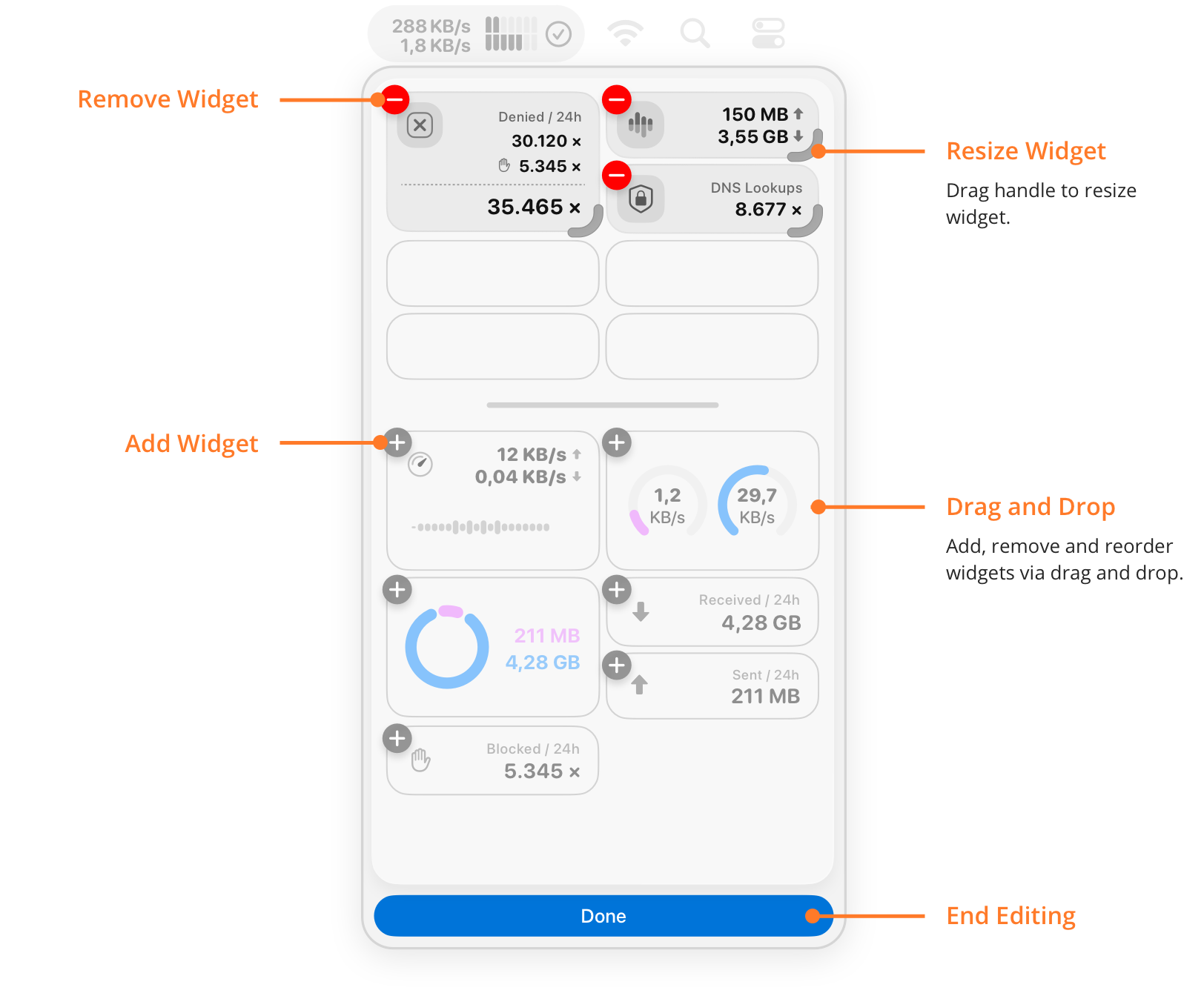
- Remove Widget: Click the minus button to remove the widget from the widget area.
- Resize Widget: Drag the handle at the bottom right corner to change the size of the widget.
- Add Widget: Click the plus button to add the widget to the widget area.
- Drag and Drop: You can also drag widgets to add, remove, or reorder them.
- End Editing: Click Done when you’re finished.
The widgets
In the app, the widgets have no names. To find out what a widget shows, move the pointer over it. This manual uses the following names:
- Denied / 24h: The number of connections that a rule denied or a blocklist blocked during the last 24 hours.
- Blocked / 24h: The number of connections that a blocklist blocked during the last 24 hours.
- DNS Lookups: The number of encrypted DNS lookups during the last 24 hours.
- Traffic Volume / 24h: The traffic volume sent and received in the last 24 hours, as numbers. A second version of this widget adds a ring chart.
- Sent / 24h: The traffic volume sent in the last 24 hours.
- Received / 24h: The traffic volume received in the last 24 hours.
- Traffic Rate: The current upload and download rates as numbers, with the history of the last five minutes. A second version of this widget shows two meters instead.
© 2016-2026 by Objective Development Software GmbH