 Little Snitch 4 Help
 Little Snitch 5 Help
 Little Snitch 6 Help
Internet Access Policy – developer documentation
This section is for app developers. If you don’t develop apps, you can skip it.
When your app connects to a server, Little Snitch users decide whether to allow it. Without more information, they have to guess what the connection is for, and if they guess wrong, they deny a connection that your app needs. An Internet Access Policy (IAP) lets you explain it yourself: what your app does, what each of its connections is for, and what happens if the user denies one. Little Snitch shows this information right where users decide, in the connection alert, in Network Monitor, and in the Little Snitch app.
Create an Internet Access Policy for your app in a few minutes
The fastest way is to start from our example, which covers both normal connections and connections through system services:
- Download the two example files:
- Put
InternetAccessPolicy.plistinto the Resources folder of your app, andInternetAccessPolicy.stringsinto your language project folder (.lproj). - Replace the example texts with descriptions of your app’s connections and services.
- Build and sign your app, and check the result in Little Snitch. You don’t need a license for this: demo mode is enough.
In most cases, that’s all it takes. But don’t skip the short checklist below.
A few more things you should know
- Code Signature: Little Snitch and Internet Access Policy Viewer show an IAP only if it’s part of a correctly signed app bundle. Read more…
- Required fields: Most fields are optional. Only these are required: ApplicationDescription, Host and Purpose for each connection, and Name and Purpose for each service. Read more…
- Be complete: List all connections that your app starts, including those of system services and embedded frameworks. Some frameworks have an IAP of their own. Read more…
- Host: The Host field accepts only domains, subdomains, hostnames, or IP addresses, not directories on your server. Read more…
- Wildcards: You can use wildcards anywhere in the domain or hostname. For example,
myserver*.commatchesmyserver1.com,myserver2.com, and so on. Read more… - Keep it simple: Keep your explanations short and plain. Read more…
The rest of this page goes into detail:
- What to describe: Connections and services, How Little Snitch shows your IAP, Writing guidelines
- Reference: File format, Specification of keys, Service identifiers, Which connection descriptions are shown
- Special cases: Localization, Nested IAPs in XPC services, embedded frameworks, and other bundles, Single executable apps
- If something doesn’t work: Troubleshooting
Connections and services
An IAP describes two kinds of network activity: the connections that your app makes itself, and the services that make connections on its behalf.
Connections: Your app makes connections through various APIs, from the low-level socket API to high-level APIs such as NSURLSession or the Network framework. Describe each of them with an entry in the Connections array.
Services: But what if your app shows a map with Apple’s MapKit framework? Then your app doesn’t make the connection itself: a macOS daemon loads the map data. For cases like this, add an entry to the Services array. It tells Little Snitch, and through it the user, that your app uses MapKit.
A service is anything that makes network connections for your app but doesn’t ship with it, for example:
- A service that macOS provides through a specific system framework, such as MapKit, CloudKit, GameKit, Core Location, …
- A service that macOS provides through a specific API, such as background downloads through
NSURLSession. - A service through which your app syncs files, such as iCloud Drive, Dropbox, Box, Microsoft OneDrive, Google Drive, …
XPC Services and frameworks that ship as part of your app aren’t services in this sense. They can have IAPs of their own, see nested IAPs. To learn how to identify the services that your app uses, see Service identifiers.
How Little Snitch shows your IAP
Little Snitch doesn’t show your IAP as a whole. In each place, it picks the entries that are relevant there, and how it picks them can change from version to version. Broadly:
- Where users look for information about connections, Little Snitch shows the
ApplicationDescriptionand the relevant connection descriptions (see Which connection descriptions are shown). In the headings of the connection descriptions, it may leave out the port and the protocol when they aren’t needed to tell the connections apart. - When users are about to deny a connection, Little Snitch shows only the short
DenyConsequences. It’s your last chance to tell them that they’re about to break something in your app.
Here’s where that happens.
Connection alert
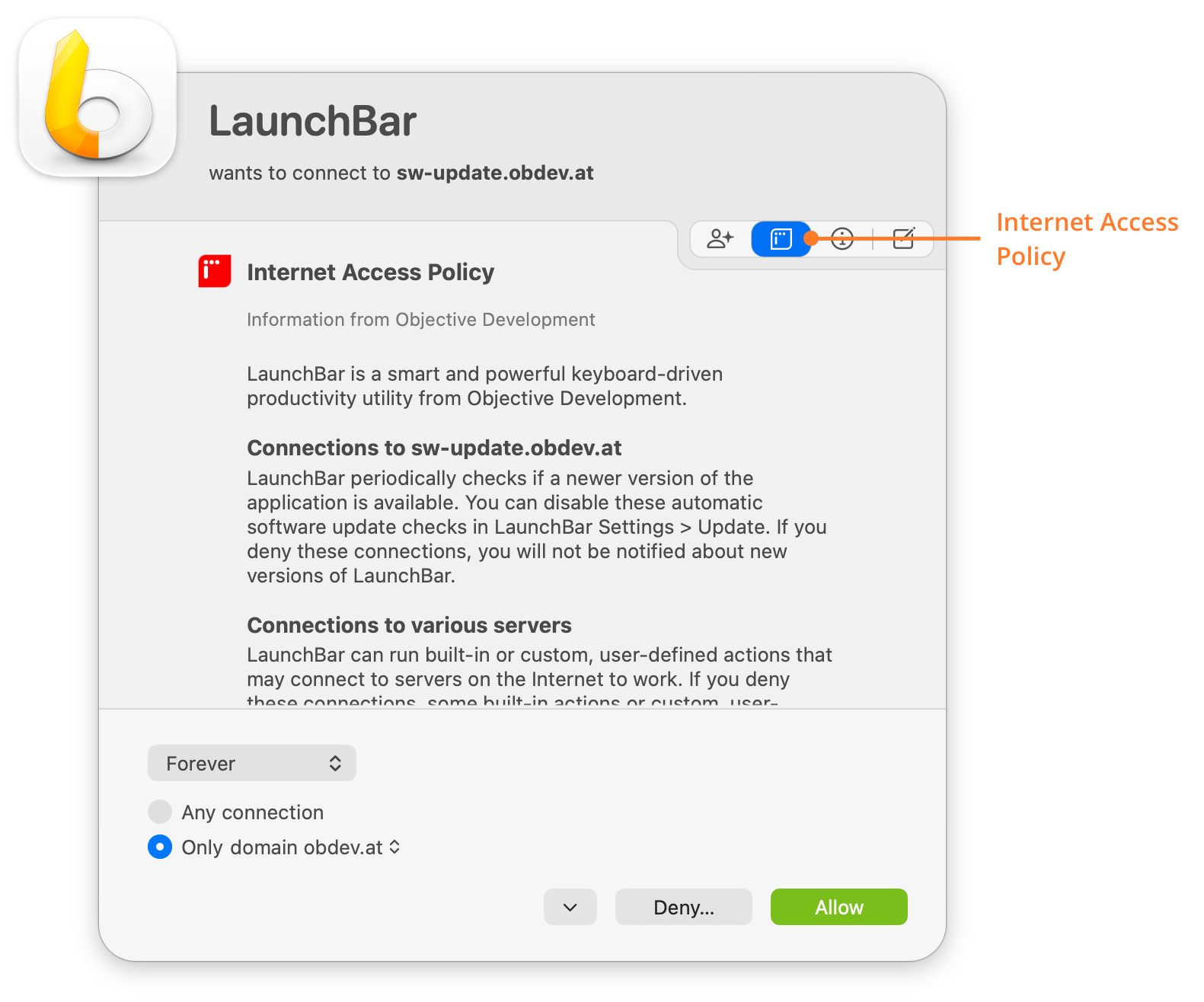
When Little Snitch is in Alert Mode and no rule matches a connection of your app, it shows a connection alert. If the user clicks IAP in the alert, the alert shows the information that is relevant to this connection:
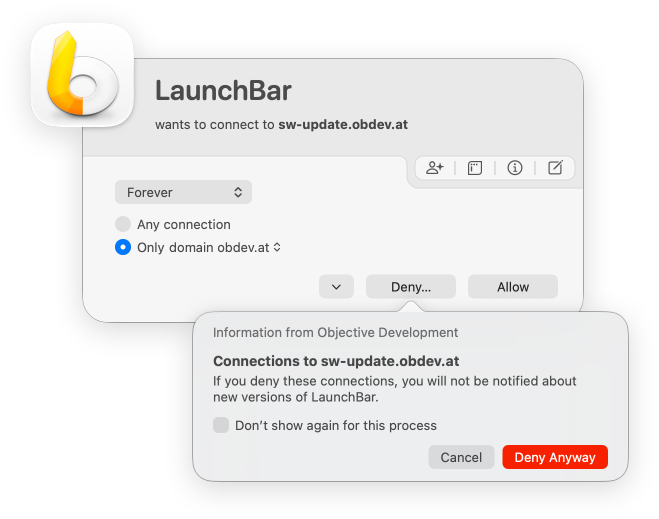
If the user clicks Deny…, the alert shows only the DenyConsequences, and the user can then click Deny Anyway or Cancel. Which DenyConsequences appear depends on the options that the user selected in the alert.
Network Monitor
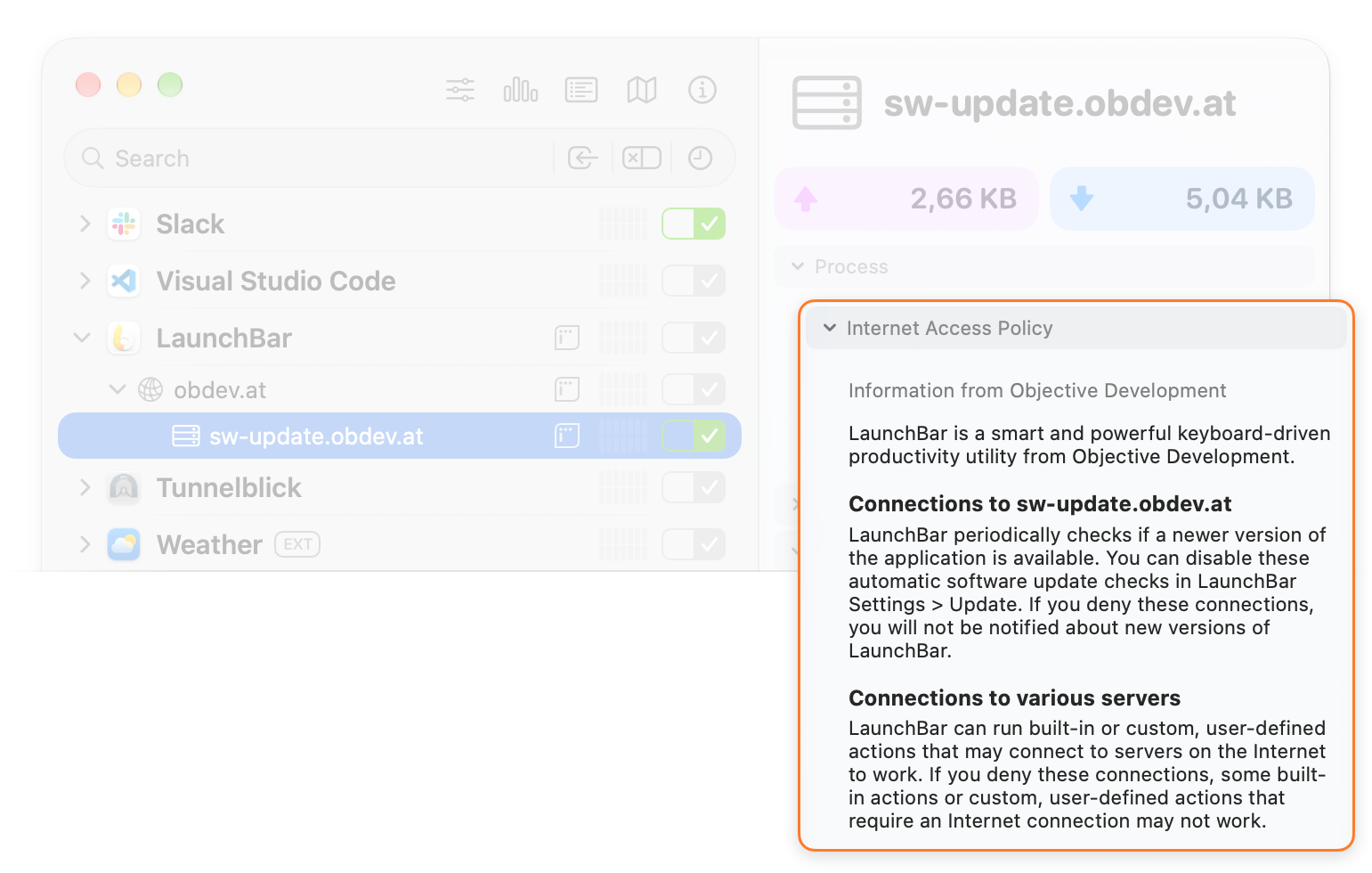
The Inspector of Network Monitor shows information about the connections that the user selected in the connection list. Its Internet Access Policy section shows the information that is relevant to the selected rows:
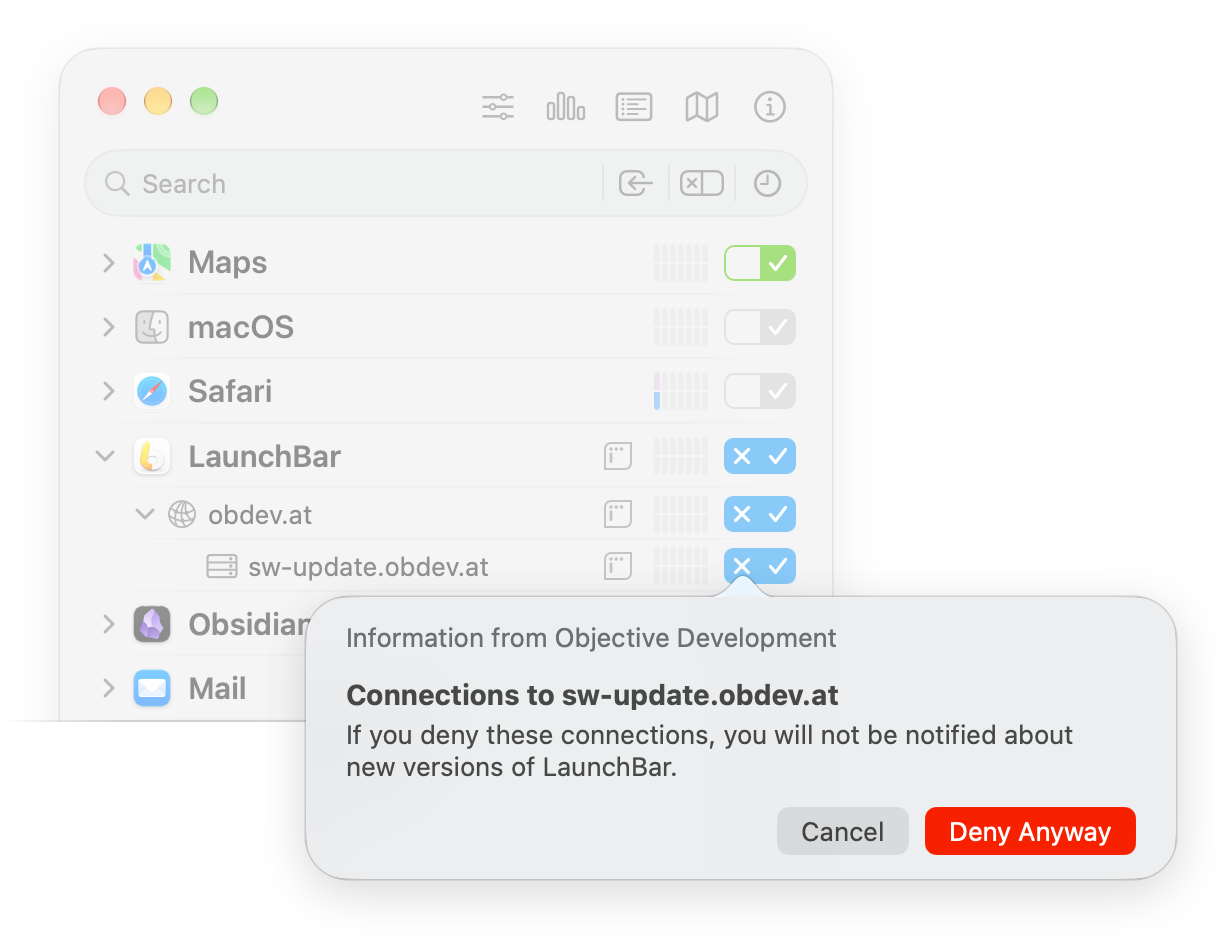
When the user clicks the deny symbol of the rule button in a row to create a deny-rule, Little Snitch shows only the DenyConsequences. Which ones depends on the row.
Rules window
The Rules window shows the IAP at the bottom of its Inspector for the selected rules, after a click on the IAP button:
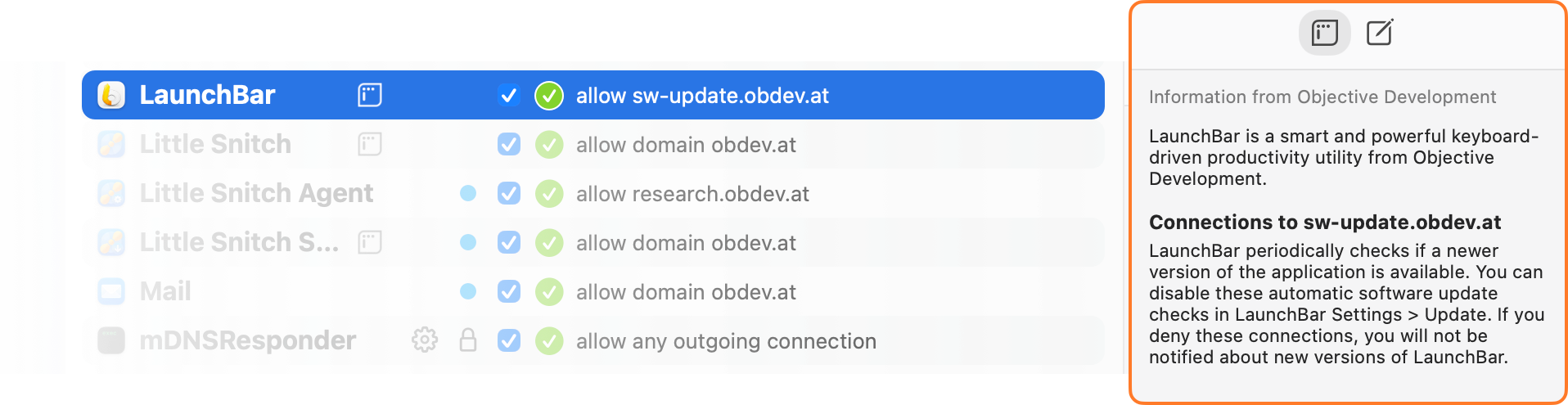
Little Snitch also shows the DenyConsequences in other places where the user is about to create a deny-rule, for example in the rule editor or for rules from suggestions.
Writing guidelines
Users read your texts in the middle of a decision, often in a small part of a window. Write for that moment:
- Keep it short. Keep in mind where Little Snitch shows each text, and say only what the user needs to decide.
- Be honest. Some of your users have the skills to sniff encrypted connections and analyze the data, and a misleading description can damage your reputation.
- Be specific. Write separate descriptions for connections with different purposes, rather than one catch-all description.
- Start
DenyConsequencesthe same way every time: with “If you deny these connections”, or the same phrase in another language. Earlier versions of this document recommended the singular (“this connection”), but the plural works better in user interfaces. - Link instead of explaining background. Don’t explain concepts that aren’t directly related to the connection, such as what a certificate authority is. Link to Wikipedia or another good source instead, in Markdown style, for example
[digital certificates](https://en.wikipedia.org/wiki/Public_key_certificate). - Look at the result. You can use Little Snitch in demo mode without a license, so it’s easy to check how your texts look.
File format
Little Snitch supports Internet Access Policies in Property List format (InternetAccessPolicy.plist) and in JSON format (InternetAccessPolicy.json). Both have the same logical structure, so use whichever you prefer. Everything on this page applies to both formats, even where the text mentions only one.
To convert a Property List IAP to JSON:
plutil -convert json -r -e json InternetAccessPolicy.plistTo convert a JSON IAP back to a Property List:
plutil -convert plist -e plist InternetAccessPolicy.jsonSpecification of keys
| Key | Type | Description | |
|---|---|---|---|
DeveloperName |
String, optional | The human-readable name of your company. Little Snitch shows it to the user as the source of the information. | |
ApplicationDescription |
String, required | A general description of the app. | |
Website |
String, optional | A URL pointing to the website of the app, including the URL scheme, for example “https://obdev.at/littlesnitch”. | |
Connections |
Array, optional | An array of connection description dictionaries with the keys below. | |
IsIncoming |
Boolean, optional | Whether the description matches incoming (YES) or outgoing (NO) connections. If you leave it out, the description matches outgoing connections. |
|
Host |
String, required | A comma-separated list of hostnames or domain names, IP address ranges, or a placeholder like local-net. See Which connection descriptions are shown for details. |
|
NetworkProtocol |
String, optional | One of TCP, UDP, or ICMP. If you leave it out, the description matches any protocol. |
|
Port |
String, optional | A comma-separated list of port ranges, for example 20-30, 80, 443. The default is 0-65535. |
|
Relevance |
String, optional | How important the connection is for your app to work correctly: Essential or Default. The default is Default. Use Essential only if your app is useless without this connection. With the default relevance, you can also describe DenyConsequences. |
|
Purpose |
String, required | What the connection is for. Little Snitch shows this text to the user as it is, so use sentences that are easy to understand. You can use Markdown-style links. | |
DenyConsequences |
String, optional | What happens if the user denies the connection. You can use Markdown-style links. | |
Services |
Array, optional | An array of service description dictionaries with the keys below. | |
Identifier |
String, optional | A unique identifier for the service. See Service identifiers below. | |
Name |
String, required | A short, human-readable name for the service, for example “MapKit”. | |
Purpose |
String, required | What your app uses the service for. Little Snitch shows this text to the user as it is, so use sentences that are easy to understand. You can use Markdown-style links. | |
Localizations |
Dictionary, optional | For apps with an embedded Info.plist, the localization strings. See Single executable apps below. |
|
Service identifiers
When you give a service an Identifier in addition to its Name and Purpose, Little Snitch knows exactly which service you mean. For some well-known services, it then shows its own localized name for the service, and future versions may use the identifier for more, such as showing an icon. So add identifiers wherever you can.
If it’s clear which app or framework implements a service, use the bundle identifier (or code signing identifier) of that app or framework. For example:
- MapKit: macOS implements this service in
/System/Library/Frameworks/MapKit.framework. The bundle identifier in the Info.plist of this framework iscom.apple.MapKit. - Core Location:
com.apple.CoreLocation(/System/Library/Frameworks/CoreLocation.framework) - GameKit:
com.apple.GameKit(/System/Library/Frameworks/GameKit.framework) - Push Notifications:
com.apple.aps(/System/Library/PrivateFrameworks/ApplePushService.framework) - StoreKit:
com.apple.StoreKit(/System/Library/Frameworks/StoreKit.framework) - Dropbox is a service provided by the Dropbox app, which uses the bundle identifier
com.getdropbox.dropbox.
If it isn’t that clear, follow these guidelines:
- Use reverse-DNS style, with the domain of the company that provides the service.
- Use a commonly used name for the service.
- Capitalization doesn’t matter.
For example:
- CloudKit: com.apple.CloudKit
- iCloudDrive: com.apple.iCloudDrive
- Background downloads via NSURLSession: com.apple.NSURLSession (no separate framework, so use the common name)
The current version of Little Snitch shows services only where it shows the IAP of the app as a whole: in Network Monitor for the row of the app, and in the Rules window. It doesn’t show them for a connection to a particular server, such as in the connection alert.
Which connection descriptions are shown
Your IAP may contain many connection descriptions, but for a particular connection, Little Snitch shows only those that are relevant. This section explains how it chooses them, so you can make sure that users see the right text.
Don’t rely on every detail in this section: the way Little Snitch chooses the descriptions changes from version to version. Test your IAP with the current version of Little Snitch.
Hosts and domains
The Host field of a connection description is a comma-separated list of the following values:
- Specific hostname: Matches only that hostname, for example
Host:sw-update.example.com. - Domain: Matches that domain and any hostname in the domain, for example
Host:*.example.com. - Exact domain: Matches only when the user selects exactly that domain, for example
Host:=*.example.com. - Exactly any connection: Matches only when the user selects Any connection:
Host:=*. - Fallback: Matches any server, but only if no other connection description matches:
Host:*. - IP addresses: Matches specific IPv4 or IPv6 addresses: a single address (for example
10.0.0.1), a comma-separated list of addresses, a range of addresses (for example10.0.0.1-10.0.0.255), or CIDR notation (10.0.0.0/24). - Local network: The special value
local-netmatches any IPv4 or IPv6 address that Little Snitch considers to be in the local network, such as10.0.0.0/8,172.16.0.0/12,192.168.0.0/16, orfd00::/8. - Berkeley Packet Filter: The special value
bpfmatches any access to Berkeley Packet Filter devices (/dev/bpf*).
Matching with wildcards
Host entries can contain wildcards, and where a wildcard is decides what it means:
- The whole entry,
*or=*:*is the fallback wildcard: it matches every server, but only if no other connection description matches.=*matches only “any connection”. - A leading
*.or=*., the domain wildcard:*.example.commatchesexample.comitself and every host below it, at any depth.=*.example.commatches only a remote endpoint for the domainexample.comitself, never a host. After the*., Little Snitch takes the rest of the entry literally: in*.cdn*.example.com, the second*is not a wildcard. - Anywhere else, the host pattern:
sync*.example.com,*foo*.example.com,www.*.example.com,api?.example.com,example.*. Here,*stands for zero or more characters, and?for exactly one.
Watch out for these pitfalls:
- All comparisons are case-sensitive, and the connection side is always lowercase, so an entry with an uppercase letter never matches.
- The connection side uses the Unicode form of internationalized names, so a label written as
xn--…never matches. example.com:443never matches.- Little Snitch treats
10.0.0.*as a hostname, not as an address range. Use a CIDR block (10.0.0.0/24) or a range instead.
How Little Snitch chooses
Often, more than one description matches. Descriptions can overlap: Host: sw-update.example.com and Host: *.example.com both match sw-update.example.com. And Little Snitch shows what’s relevant to what the user selected in the connection alert or elsewhere: descriptions for www.example.com and sw-update.example.com don’t overlap, but when the user creates a rule for the domain example.com, both are relevant.
So Little Snitch follows these rules, which keep the information short for the user and give you precise control:
- An exact match wins. Little Snitch shows only one description if it matches exactly what the user selected:
- a specific hostname for connections to that hostname, for example
Host:sw-update.example.com, - an exact domain for connections to that domain, for example
Host:=*.example.com, - exactly any connection when the user selects “any connection”:
Host:=*.
- a specific hostname for connections to that hostname, for example
- Otherwise, all matching descriptions are shown, in the order of their relevance, for example
Host:*.example.com. - If none matches, the fallback is shown, if you have one:
Host:*. - If there’s no fallback either, Little Snitch shows no IAP information that is specific to the connection.
The following examples show why exact matches are useful.
Example 1: Overlapping descriptions
Say you have two connection descriptions (with shorter Purpose fields than usual, to keep the example clear):
- Connection Description 1:
Host:sw-update.example.comPurpose: The app checks for software updates.
- Connection Description 2:
Host:*.example.comPurpose: The app checks for software updates and loads the latest news.
What Little Snitch shows depends on what the user selects:
- Connections to the hostname
sw-update.example.com: only Connection Description 1, because it’s an exact match. - Connections to the domain
example.com: both descriptions, becausesw-update.example.comis in that domain. - Any connection: both descriptions.
All of these results are technically correct. But in the last two cases, showing both descriptions isn’t helpful, because their Purpose texts overlap. The user doesn’t need to read twice that the app checks for software updates.
Example 2: Exact matches
With exact matches, you can give each selection a text of its own:
- Connection Description 1:
Host:sw-update.example.comPurpose: The app checks for software updates.
- Connection Description 2:
Host:=*.example.comPurpose: The app checks for software updates and loads the latest news.
- Connection Description 3:
Host:=*Purpose: The app checks for software updates and loads the latest news. Also, it connects to the third-party servers you enter.
Now each selection gets exactly one description:
- Connections to the hostname
sw-update.example.com: only Connection Description 1. - Connections to the domain
example.com: only Connection Description 2. - Any connection: only Connection Description 3.
Example 3: A fallback for all other servers
Finally, add a fallback to Example 2:
- Connection Description 4:
Host:*Purpose: The app connects to the third-party servers you enter.
Little Snitch now shows it for every connection to a server that no other description covers, for example www.apple.com. Without it, Little Snitch would show no information from your IAP for such connections.
Localization
The Internet Access Policy contains texts that Little Snitch shows to the user. If your app is available in several languages, provide these texts in the same languages.
To do this, use unique keys instead of human-readable texts for ApplicationDescription, Purpose, and DenyConsequences, and translate these keys in localized InternetAccessPolicy.strings files:
MyApp.app/Contents/Resources/InternetAccessPolicy.plist
MyApp.app/Contents/Resources/language.lproj/InternetAccessPolicy.strings
Nested IAPs in XPC services, embedded frameworks, and other bundles
The best place to describe a connection is next to the code that makes it. So if your app uses an XPC service, you can put an IAP into the Resources folder of the .xpc bundle. Little Snitch finds it and merges it with the IAP of the app automatically. For example:
-
MyApp
.app/Contents/Resources/InternetAccessPolicy.plistDescribes the connections that the app itself makes.
-
MyApp
.app/Contents/XPCServices/MyService.xpc/Contents/Resources/InternetAccessPolicy.plistDescribes the connections that the XPC service makes for the app.
This works for embedded frameworks, plug-ins, app extensions, and other loadable bundles too, as long as they are in one of these directories inside the app bundle:
- Frameworks/
- SharedFrameworks/
- PlugIns/
- XPCServices/
Little Snitch searches these directories recursively: if an XPC service has an IAP, Little Snitch also searches the bundles embedded in the XPC service, and so on. It does this only if the app itself contains an IAP.
A few details for nested IAPs:
- In their localized strings, you can use the placeholder
%APPNAME%for the name of the enclosing app. Little Snitch replaces it before it shows the text to the user. - They need an
ApplicationDescriptiontoo, although Little Snitch currently doesn’t show it.
Single executable apps
Internet Access Policy as part of Info.plist
Single executable apps don’t have a bundle directory for an Internet Access Policy file. But they can have an Info.plist embedded in a Mach object section of the executable file, and since the Internet Access Policy is a property list, it can go in there. Create the Internet Access Policy as described above, but instead of saving it as a separate file, add it to Info.plist under the top-level key InternetAccessPolicy.
Localization without .lproj bundles
Without a bundle directory, localization works differently too. For embedded Info.plist files, there’s one method, similar to the strings files above: add the localizations at the key path InternetAccessPolicy.Localizations.<language>, where <language> is the language name as used for .lproj directories, for example en for English.
Example:
| Key | Type | Value | |||||
|---|---|---|---|---|---|---|---|
| ▾ | Root | Dictionary | (14 items) | ||||
| ▾ | InternetAccessPolicy | Dictionary | (3 items) | ||||
| ApplicationDescription | String | StringsKey1 | |||||
| ▸ | Connections | Array | (2 items) | ||||
| ▸ | Services | Array | (2 items) | ||||
| ▾ | Localizations | Dictionary | (2 items) | ||||
| ▾ | en | Dictionary | (2 items) | ||||
| StringsKey1 | String | EditHelper is part of myCompany’s text editing suite. It provides dictionary and spell checking services to other components. | |||||
| StringsKey2 | String | EditHelper updates its dictionary from this server. | |||||
| … | |||||||
How to embed an Info.plist in an executable
The Info.plist lives in a Mach object section named __info_plist in the __TEXT segment, where the linker option -sectcreate __TEXT __info_plist puts it. Fortunately, Xcode can do that for you.
In Xcode, select the target of your executable, open the Build Settings, and search for Info.plist. Two settings matter:
- Info.plist File: Enter the path to your
Info.plistfile here. - Create Info.plist Section in Binary: Set this to
Yes.
Troubleshooting
If Little Snitch doesn’t seem to use the Internet Access Policy of your app, check these points.
Is the app correctly signed?
Your app needs a valid code signature. Otherwise, Little Snitch ignores the InternetAccessPolicy.plist file and writes a message to the system log (open Console.app and filter for Little Snitch). While you write and test your Internet Access Policy, it’s easiest to run the app from Xcode, with a scheme that signs the code correctly.
Little Snitch verifies the code signature of these files:
- The executable of the app bundle.
- The
InternetAccessPolicy.plistfile that it uses. - The
InternetAccessPolicy.stringslocalization file, if used.
A development build is enough. Little Snitch accepts a signature with any certificate issued by Apple, such as Apple Development or Developer ID Application, and doesn’t require notarization. It doesn’t accept apps that are ad hoc signed (Sign to Run Locally in Xcode) or unsigned.
If you change an IAP file after signing the app, the file no longer matches the code signature, and Little Snitch ignores the IAP. Sign the app again after each change.
Does a helper process make the connection?
If your app uses a helper process that needs an IAP, put the IAP files into the Resources of the app as usual. Little Snitch shows these connections as “App via Helper” and looks for IAP information in the bundle of the parent app.
Does Little Snitch show the wrong source?
If Little Snitch shows “Information from application developer” as the source instead of the name of your company, add the DeveloperName key at the top level of the InternetAccessPolicy.plist. It’s the best way to name the source of the IAP. Without it, Little Snitch reads the name of your company from the certificate that signed the app, which works only for Developer ID and Development certificates. For apps from the Mac App Store, DeveloperName is required.
© 2016-2026 by Objective Development Software GmbH