Watching Your Connections
The connections view is where most of the action is. It lists current and past network activity by application, shows what is being blocked by your rules and blocklists, and tracks data volumes and traffic history.
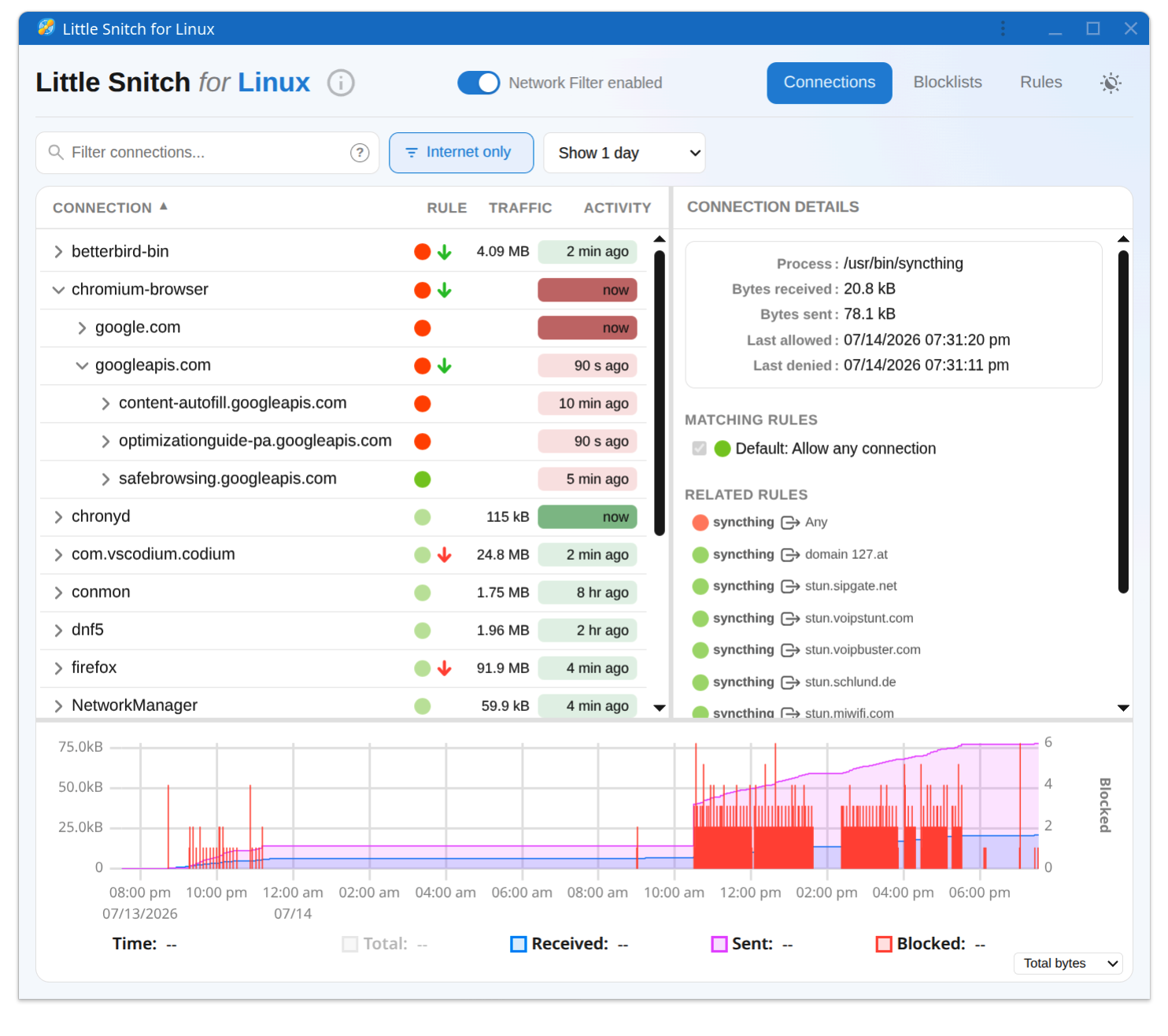
The connections list
Each application appears as a top level entry. Expanding it reveals the domains it has contacted, which you can drill into further, down to host names and IP addresses with ports and protocols.
To keep an overview as the list grows:
- Sort by last activity, data volume, or name.
- Filter the list to show only what is relevant to you right now.
Blocking a connection takes a single click. Little Snitch creates a matching rule for you. You can refine it later in the Rules view.
The traffic diagram
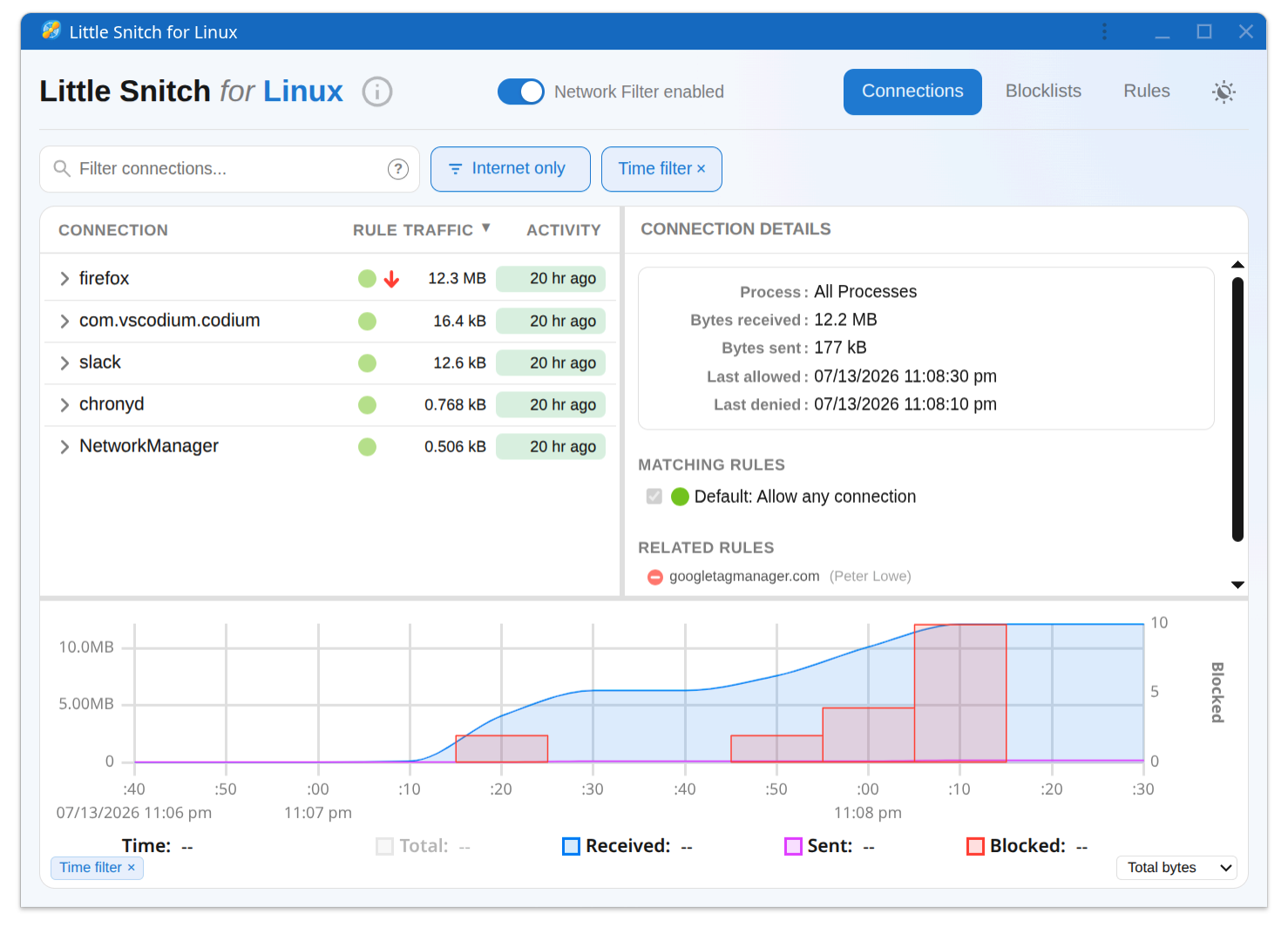
The diagram at the bottom shows data volume over time. Drag across a time range to zoom in. Zooming also filters the connections list, so it shows only activity from the selected period. This is a quick way to answer questions like "what was that burst of traffic a couple of hours ago?"
How Little Snitch knows a server's name
Network connections are made to IP addresses, but IP addresses mean little to humans. Little Snitch therefore shows domain names wherever possible. It learns them by watching your system's DNS lookups: when an application asks "what is the address of example.com?", Little Snitch remembers the answer, and when a connection to that address follows, it labels the connection with the name.
This works very well in practice, but it is a heuristic, not a guarantee. Several names can resolve to the same IP address, especially on content delivery networks where thousands of unrelated websites may share one address. If a name looks surprising, keep in mind that it is one valid name for that address, but not necessarily the one the application used.
Name detection works best when Little Snitch can actually see the DNS lookups. DNS caching and DNS encryption can hide them. If names are missing or wrong on your system, see the section on DNS visibility in Advanced Topics, which also explains the detection mechanism in full detail.
Connections shown as "app via helper"
Sometimes the process that opens a connection does not tell the whole story. If you see curl connecting to a server and you did not type that command yourself, the interesting question is which program used curl to transfer data.
Little Snitch answers this by looking at the process's ancestry. When it finds an interesting parent, the connection is shown as "parent via process", for example "backup-tool via curl". Rules can match this combination, so you can allow curl when used by your backup tool while blocking it for everything else. Rules for the parent alone also exist, and they match connections made by the parent directly or through any helper.
What counts as an "interesting" parent is determined by configurable heuristics. If the attribution looks wrong on your system, for instance if a launcher or wrapper shows up as parent where you would expect the actual application, this can be adjusted. See Advanced Topics for how the parent detection works and Advanced Configuration for how to adjust it.
Application versions and updates
Some applications live in paths that contain a version number, or are mounted under a directory whose name changes on every start (AppImages, for example). Little Snitch normalizes such paths, so an application keeps its identity across updates and restarts. You see one entry per application rather than one entry per version, and your rules survive updates.
The normalization is driven by configurable patterns. If an application still shows up multiple times after an update, a pattern for it may be missing. See Advanced Topics for how normalization works and how to add patterns.
© 2016-2026 by Objective Development Software GmbH